SH Social Pro Documentation
SH Social Pro – WordPress FSE Block Theme
Introduction
SH Social Pro is a Full Site Editing (block) WordPress theme for charities, nonprofit organizations, social welfare groups, community organizations, NGOs, and other purpose-driven projects. It is responsive, SEO friendly, translation ready, RTL ready and supports WooCommerce.
| Requires WordPress | 6.4 or higher |
|---|---|
| Tested up to | 7.1 |
| Requires PHP | 7.4 or higher |
| WooCommerce | 6.0 – 11.1 |
| License | GNU GPL v3.0 |
Installation
Via WordPress dashboard
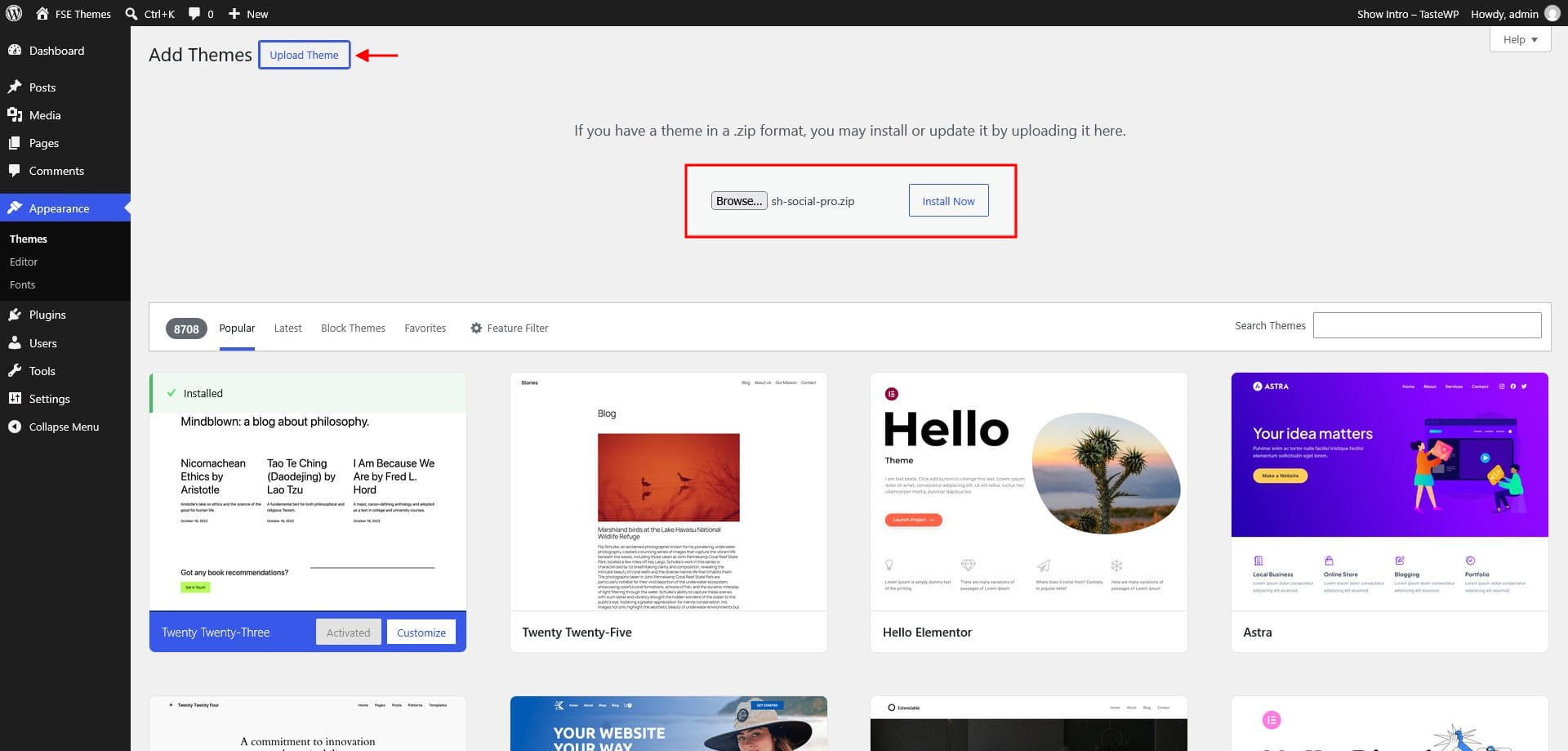
- Go to Appearance → Themes → Add New → Upload Theme.
- Choose
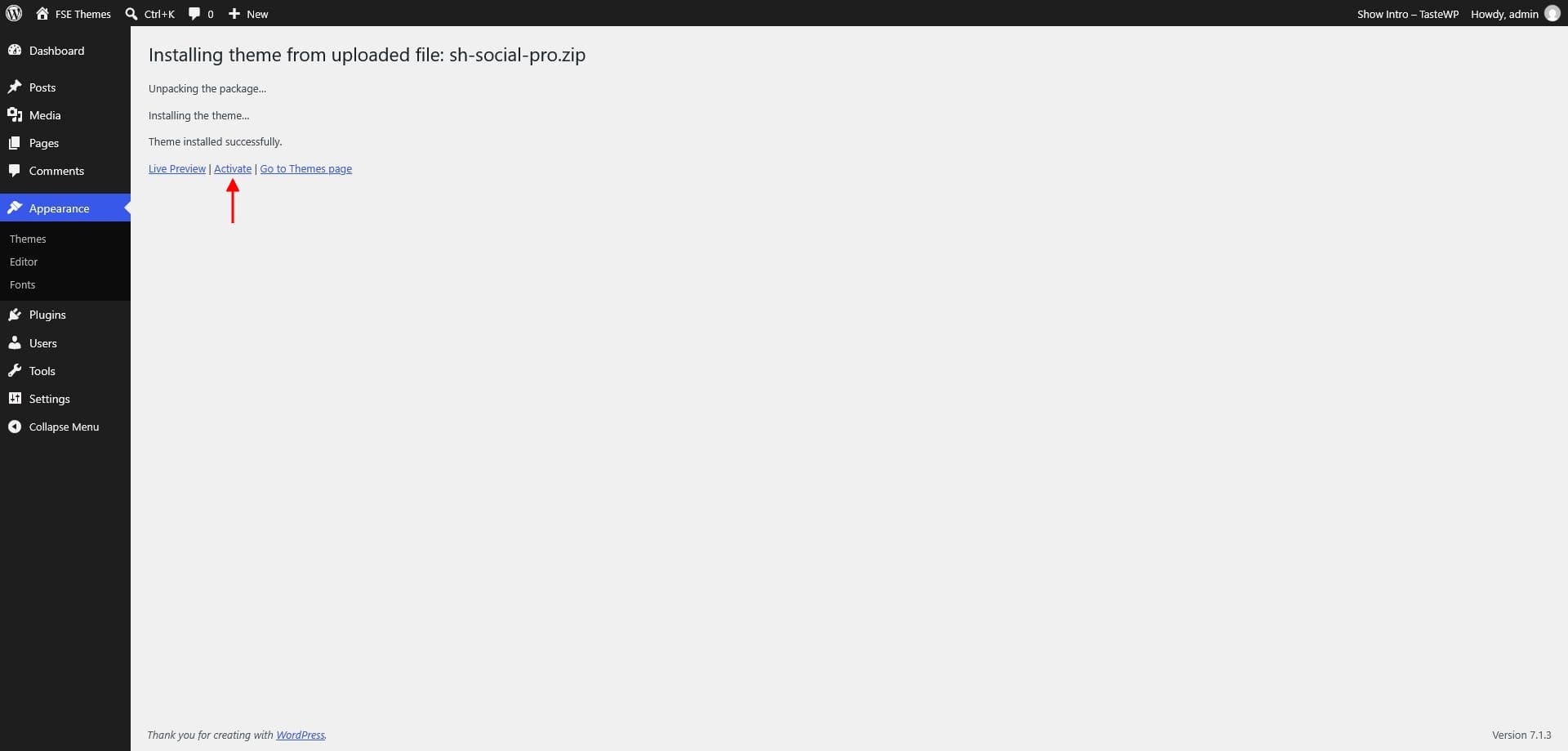
sh-social-pro.zipand click Install Now. - Click Activate.
Via FTP
- Unzip the theme package.
- Upload the
sh-social-profolder to/wp-content/themes/. - Activate it from Appearance → Themes.
Demo import
Import all demo content in one click to get a site that matches the live preview.
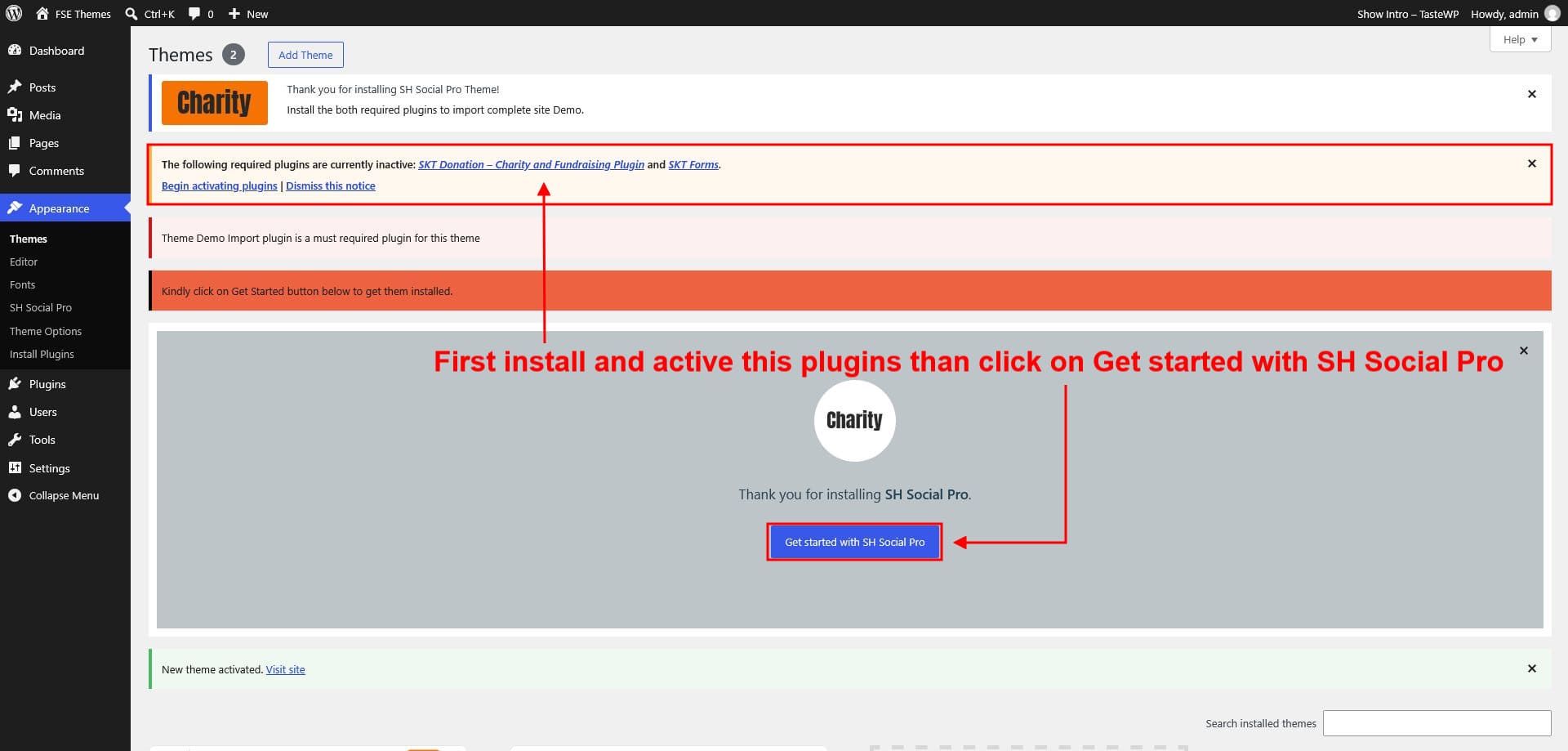
Before you import: install and activate every required plugin for the theme. Demo content won't load correctly otherwise.
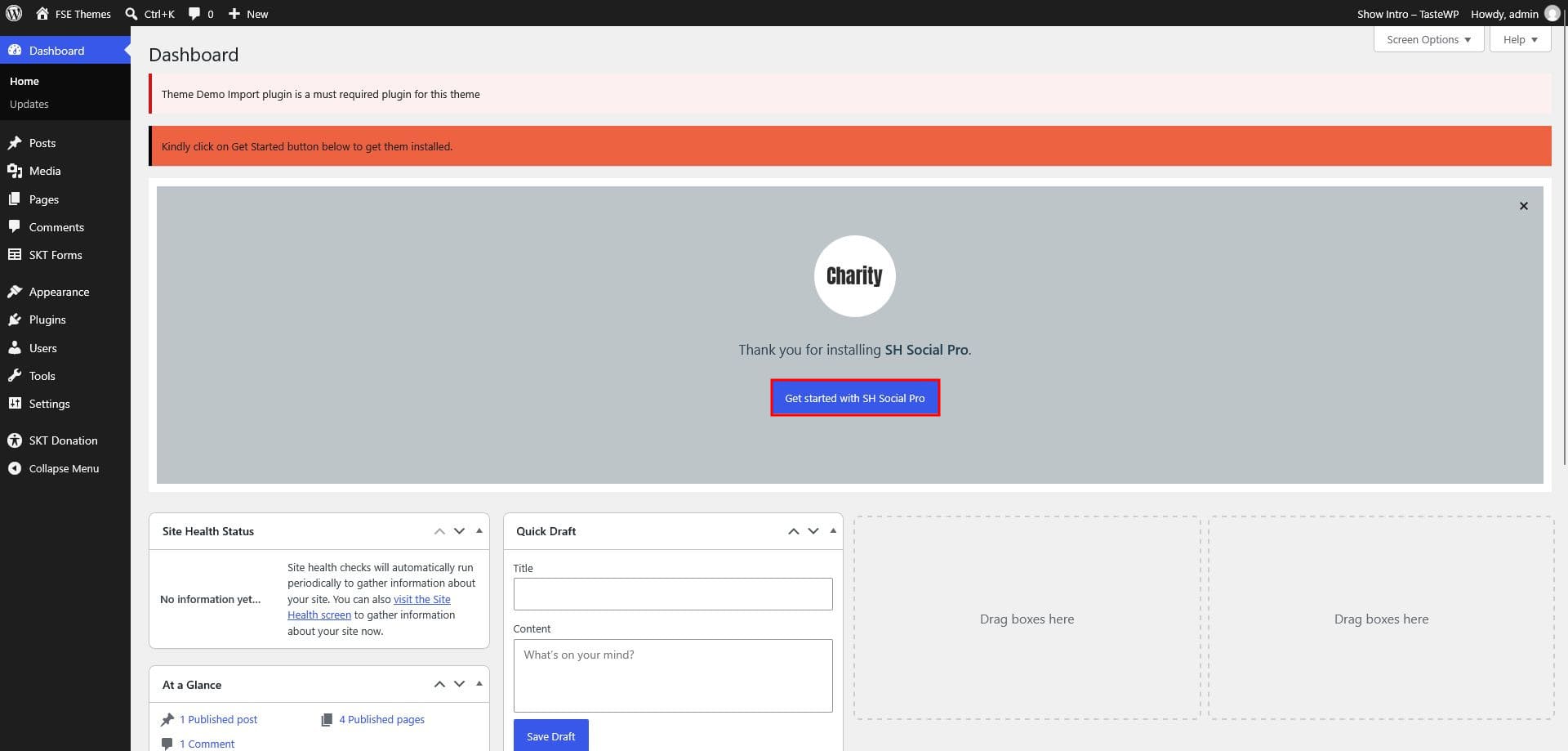
- After activating the theme, the setup screen appears.
- Click Begin installing plugins and install and activate every listed plugin.
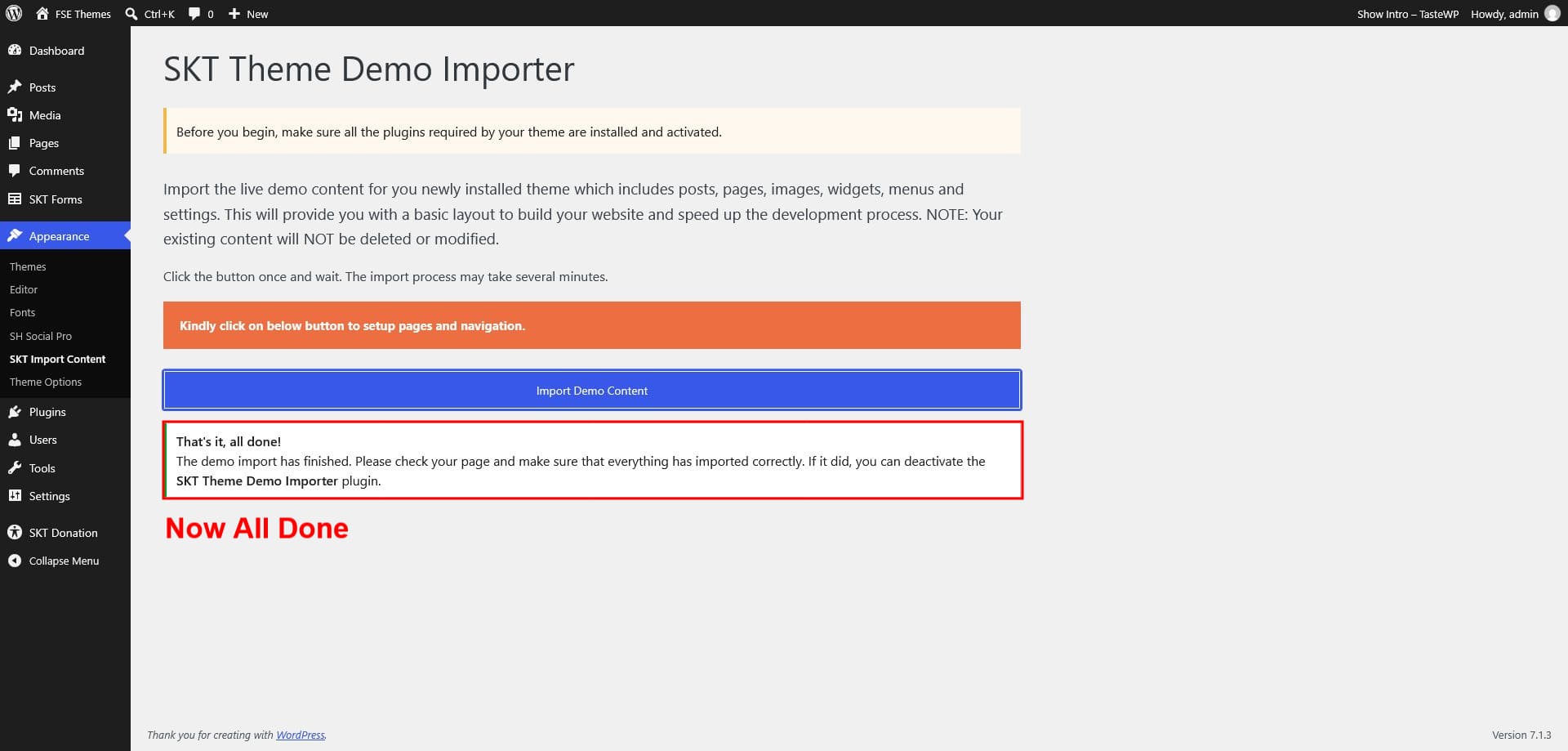
- Return to the setup screen and run the one-click demo import.
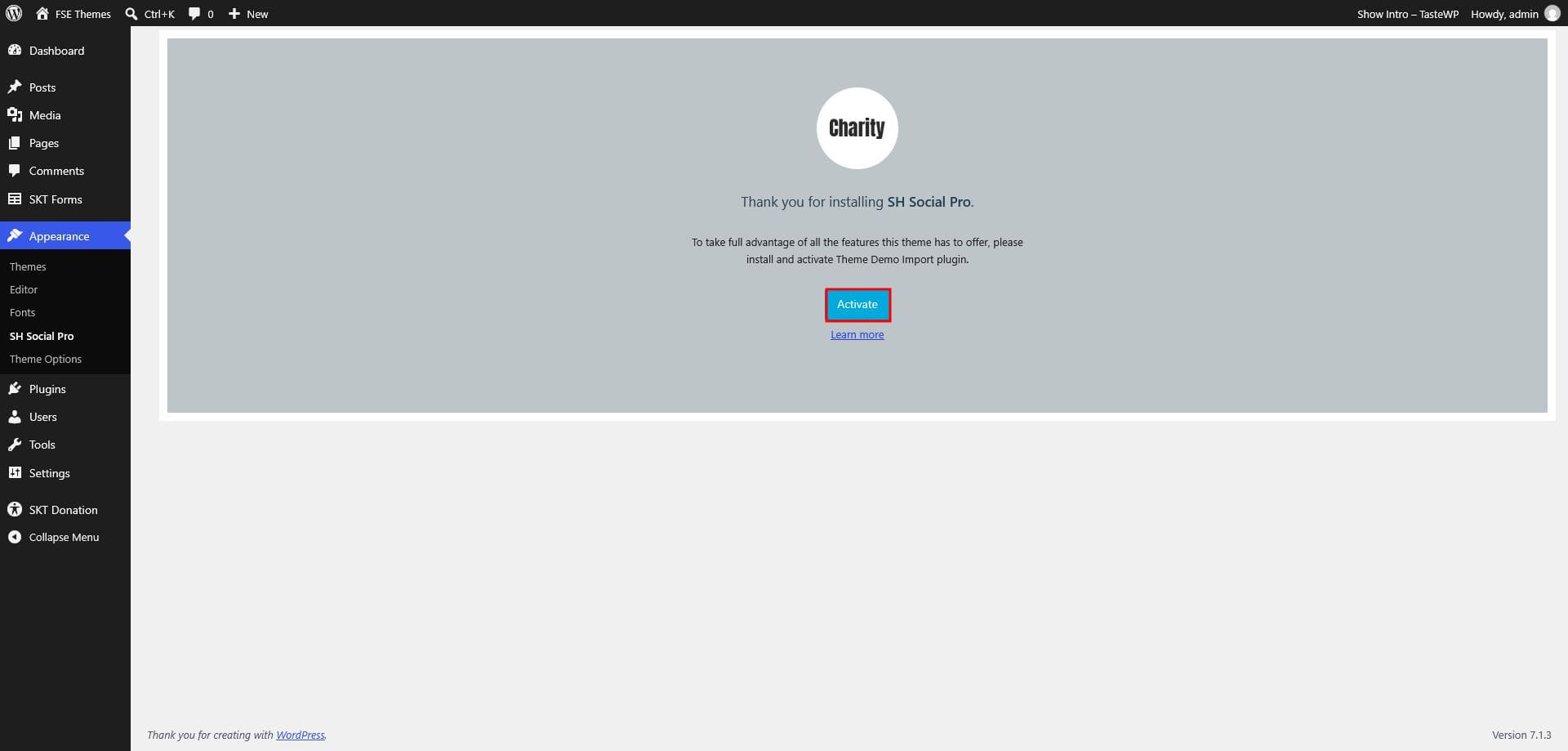
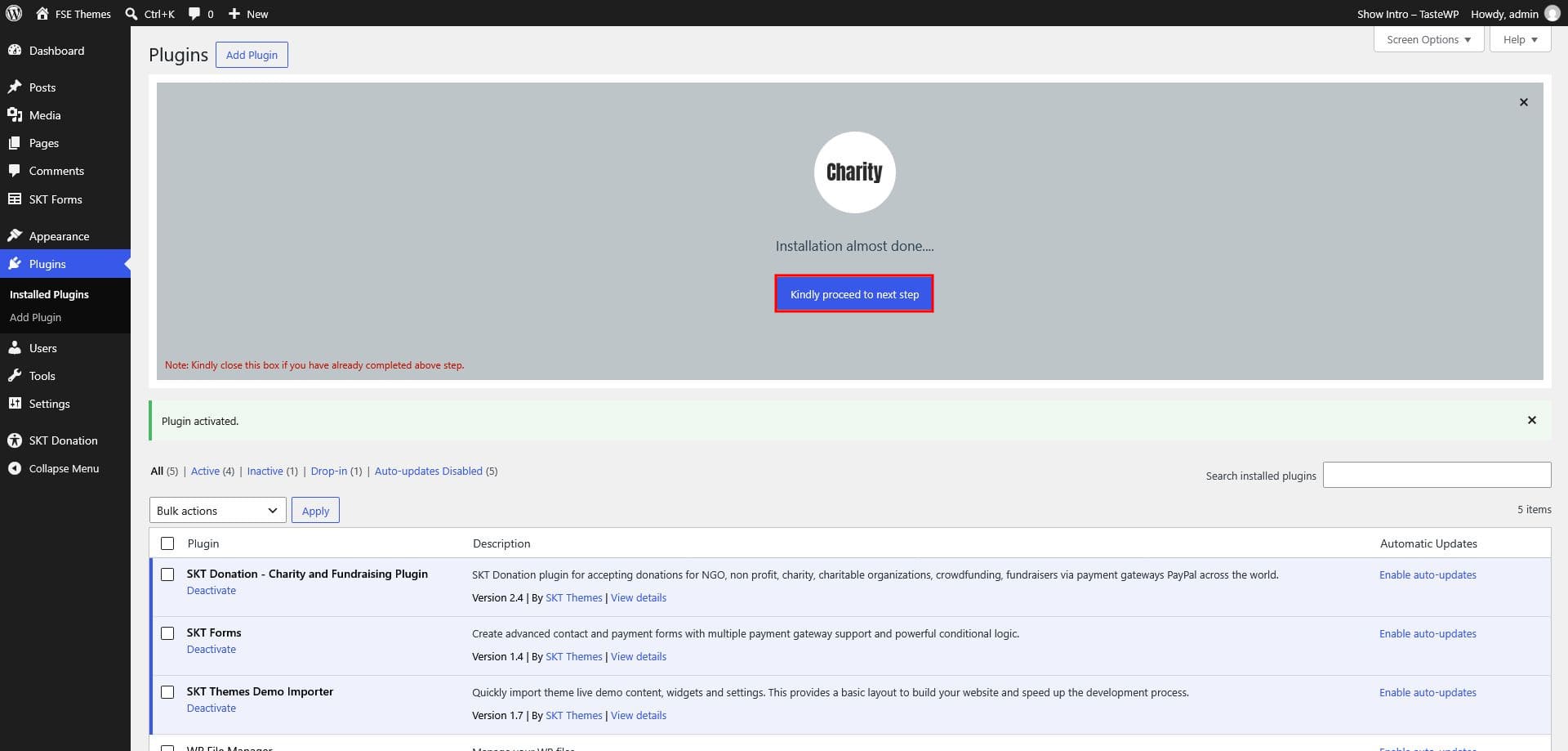
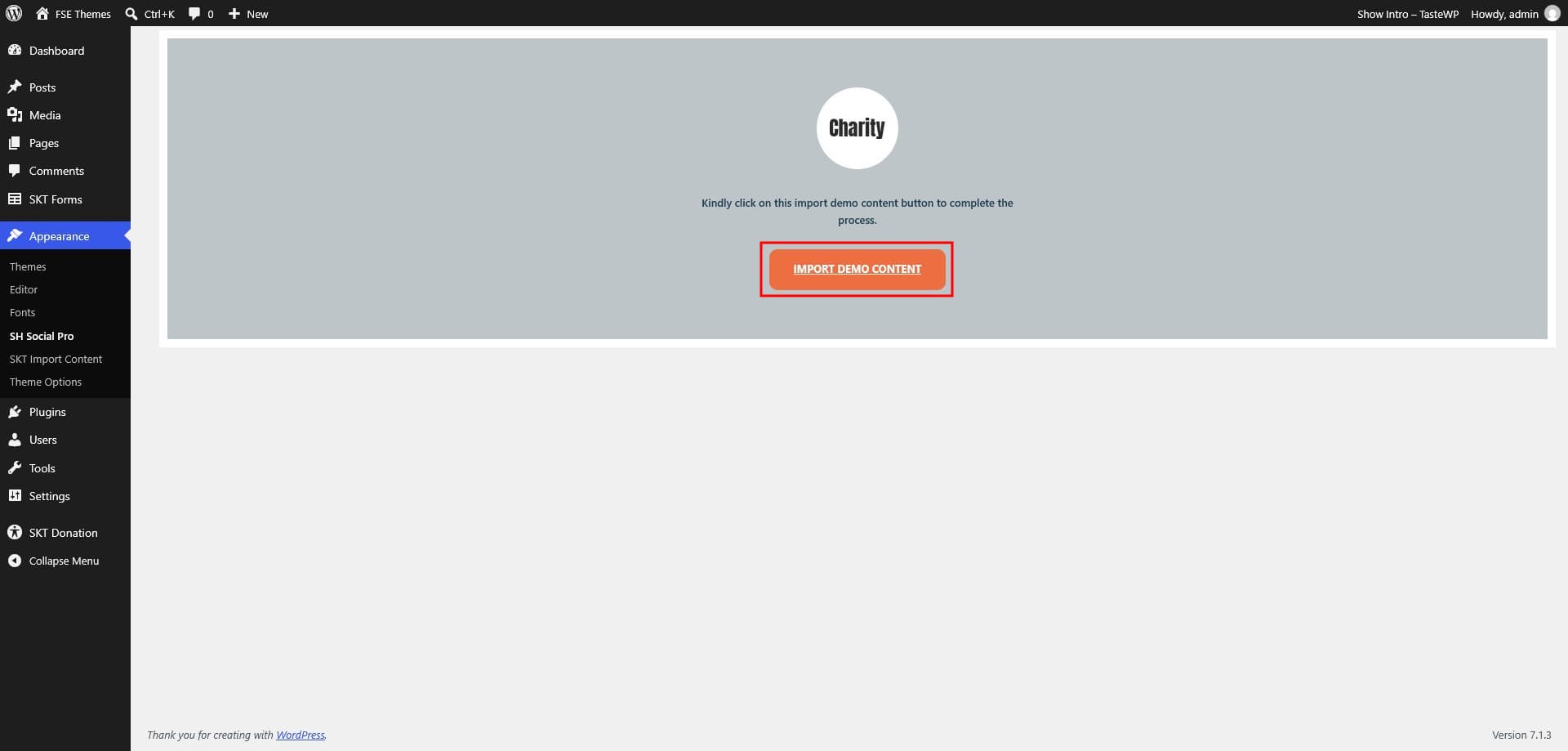
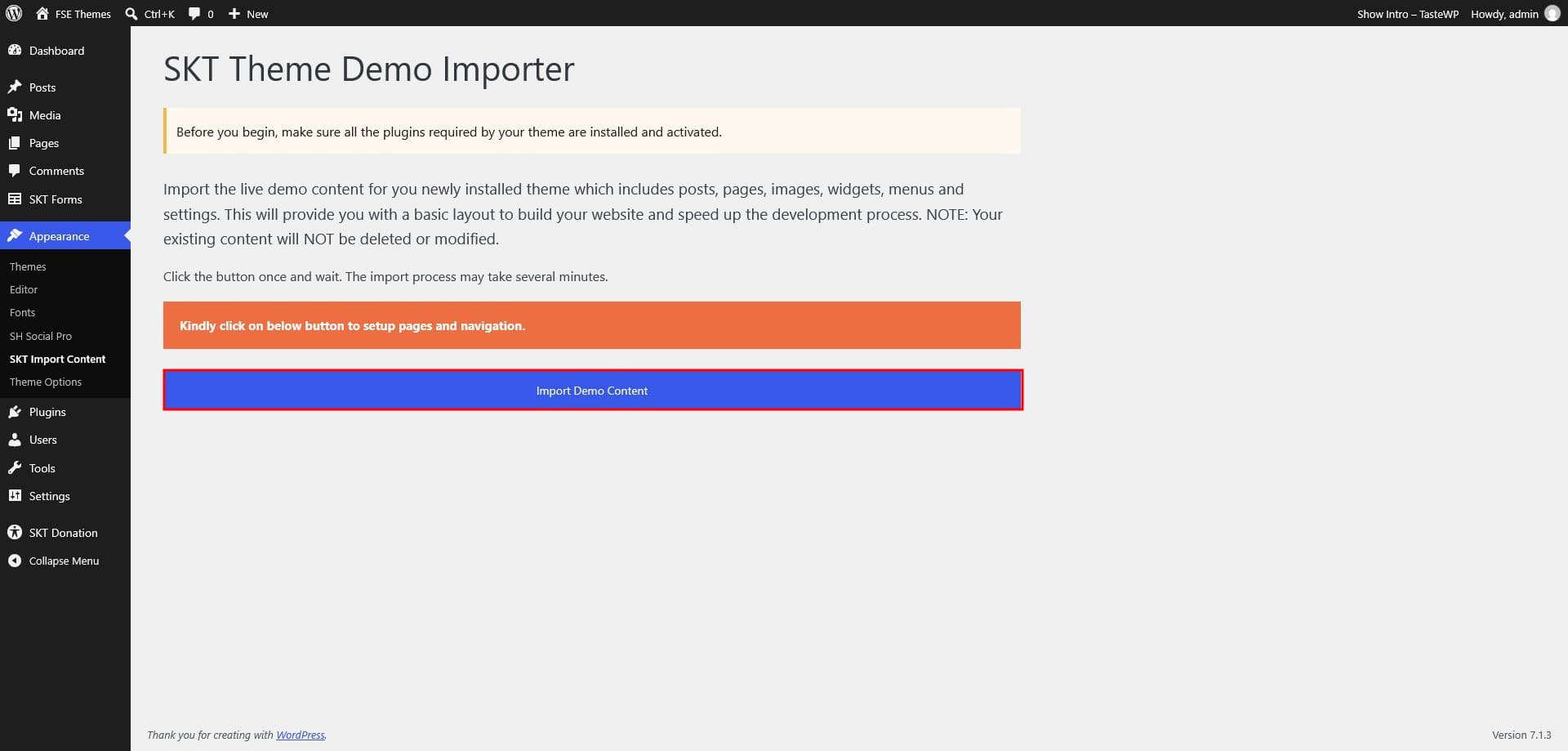
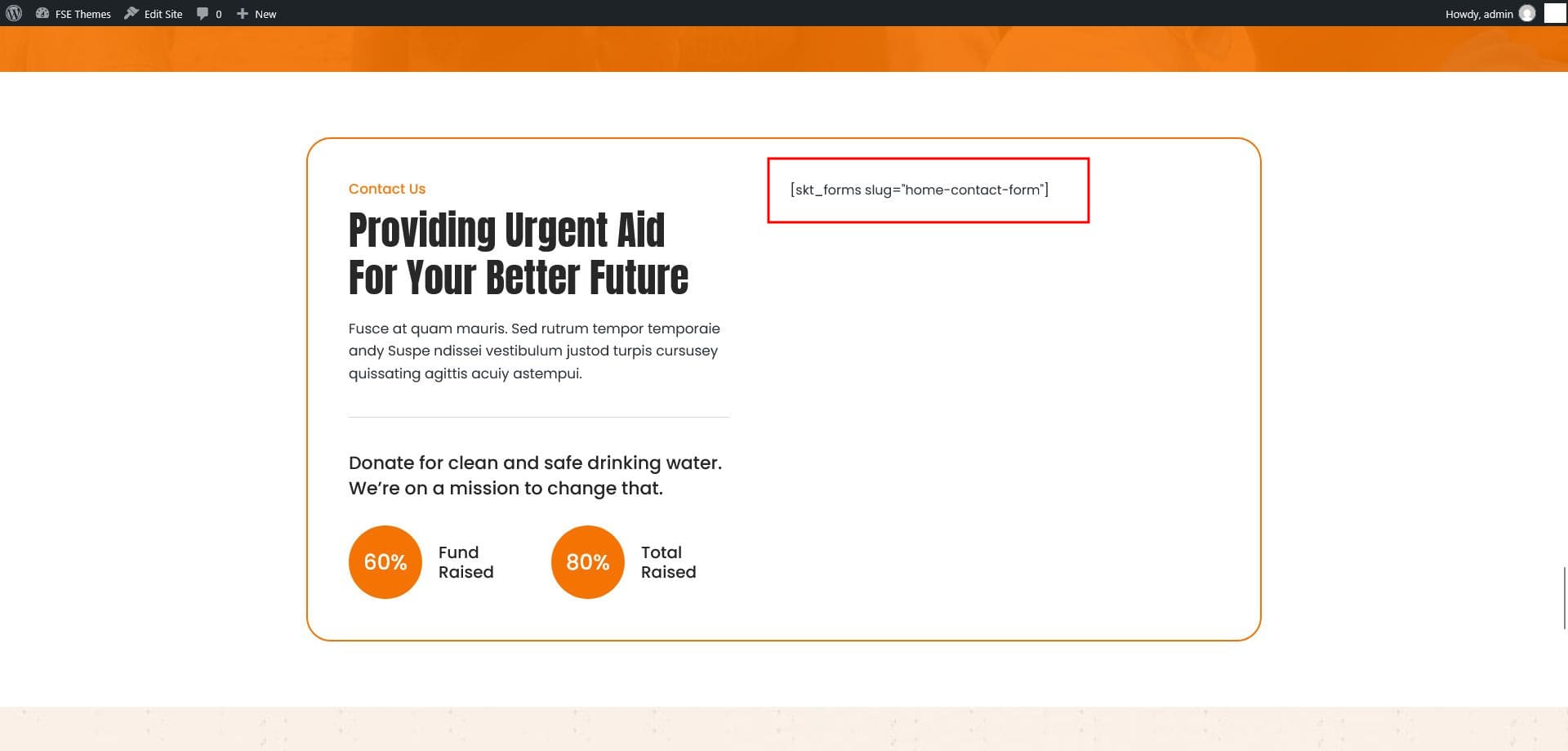
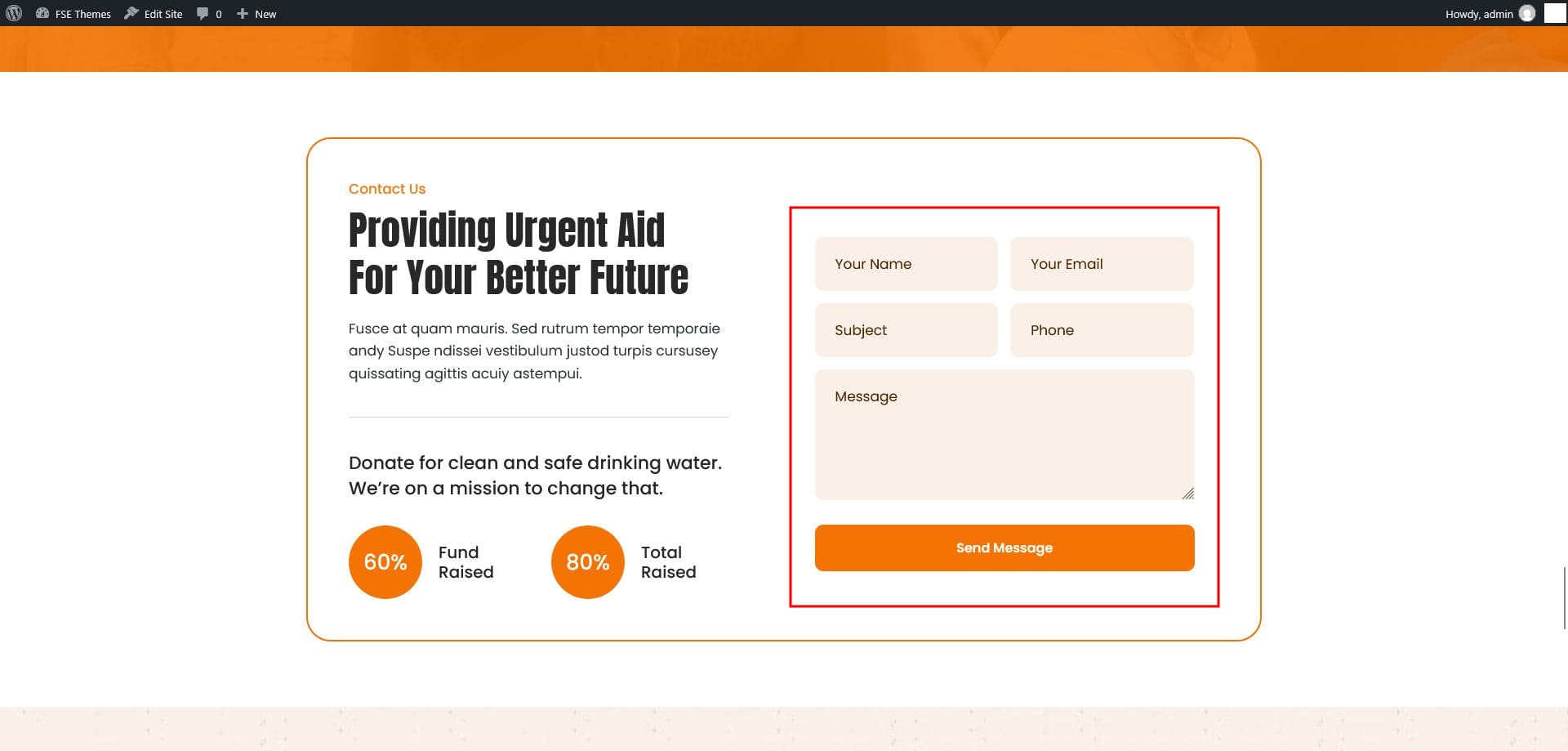
If a section such as "Contact Us" looks empty after import, open Appearance › Editor, make any small change to the home page, and click Save. The section will then display correctly.
Edit the home page
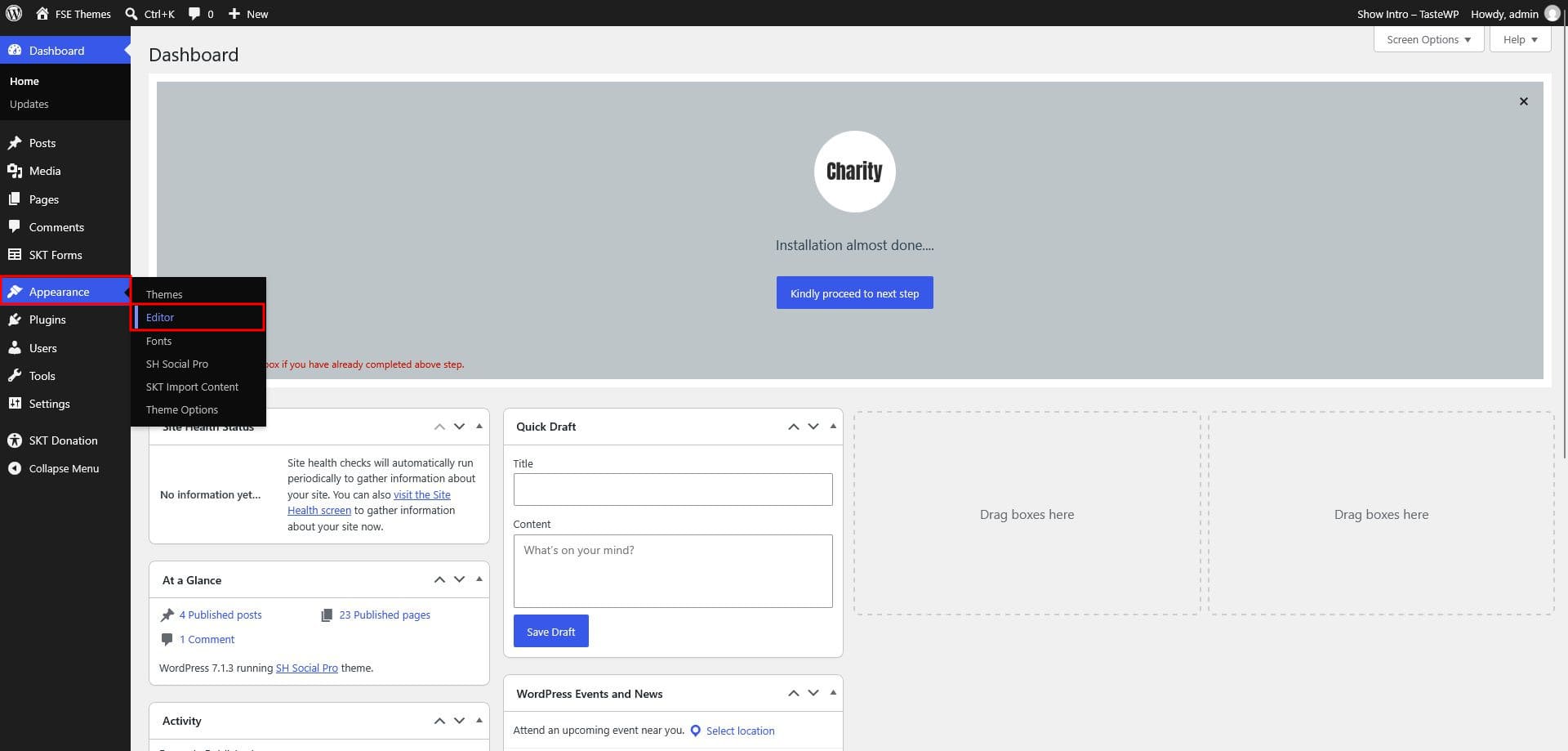
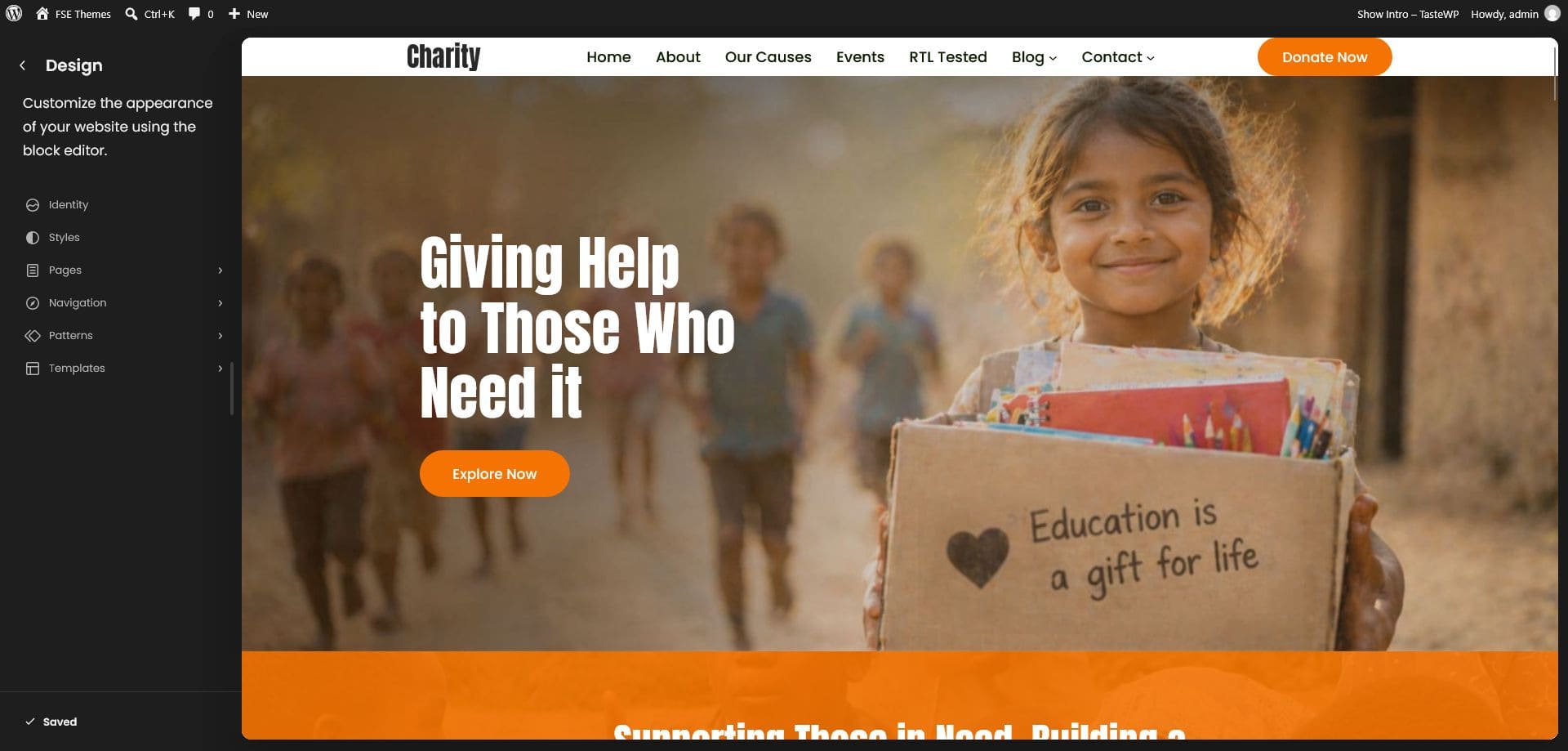
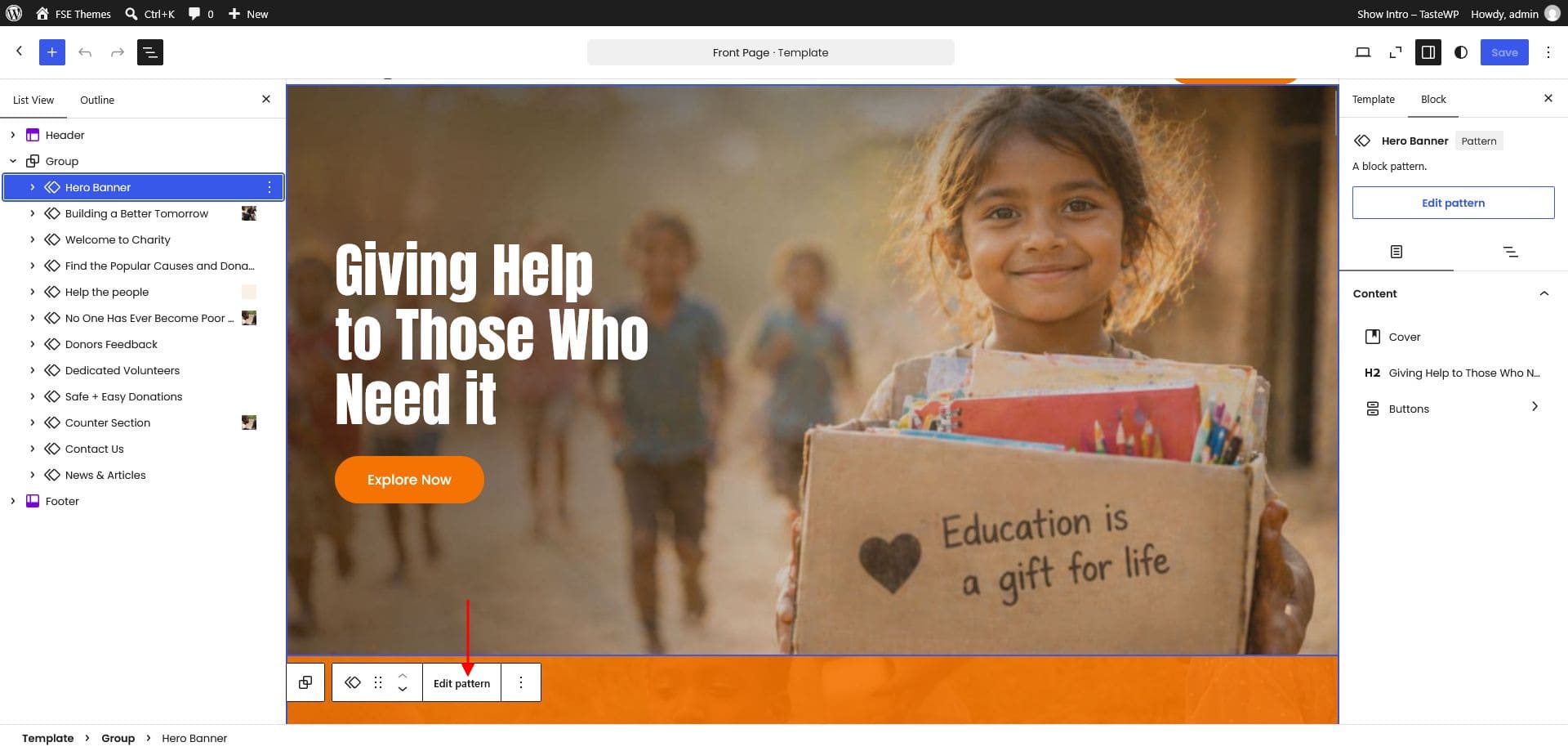
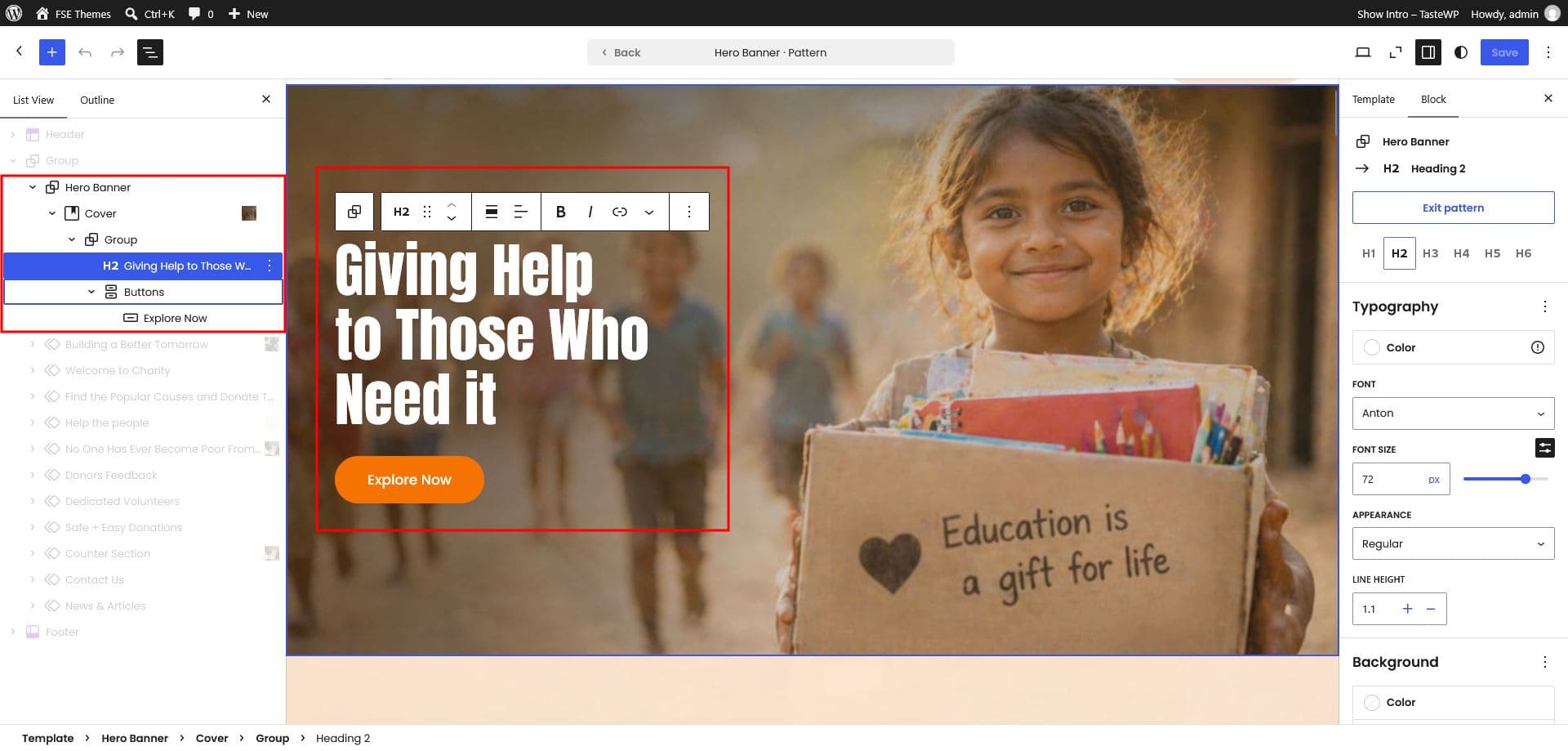
Open Appearance › Editor to edit your home page in the block editor.
Add patterns
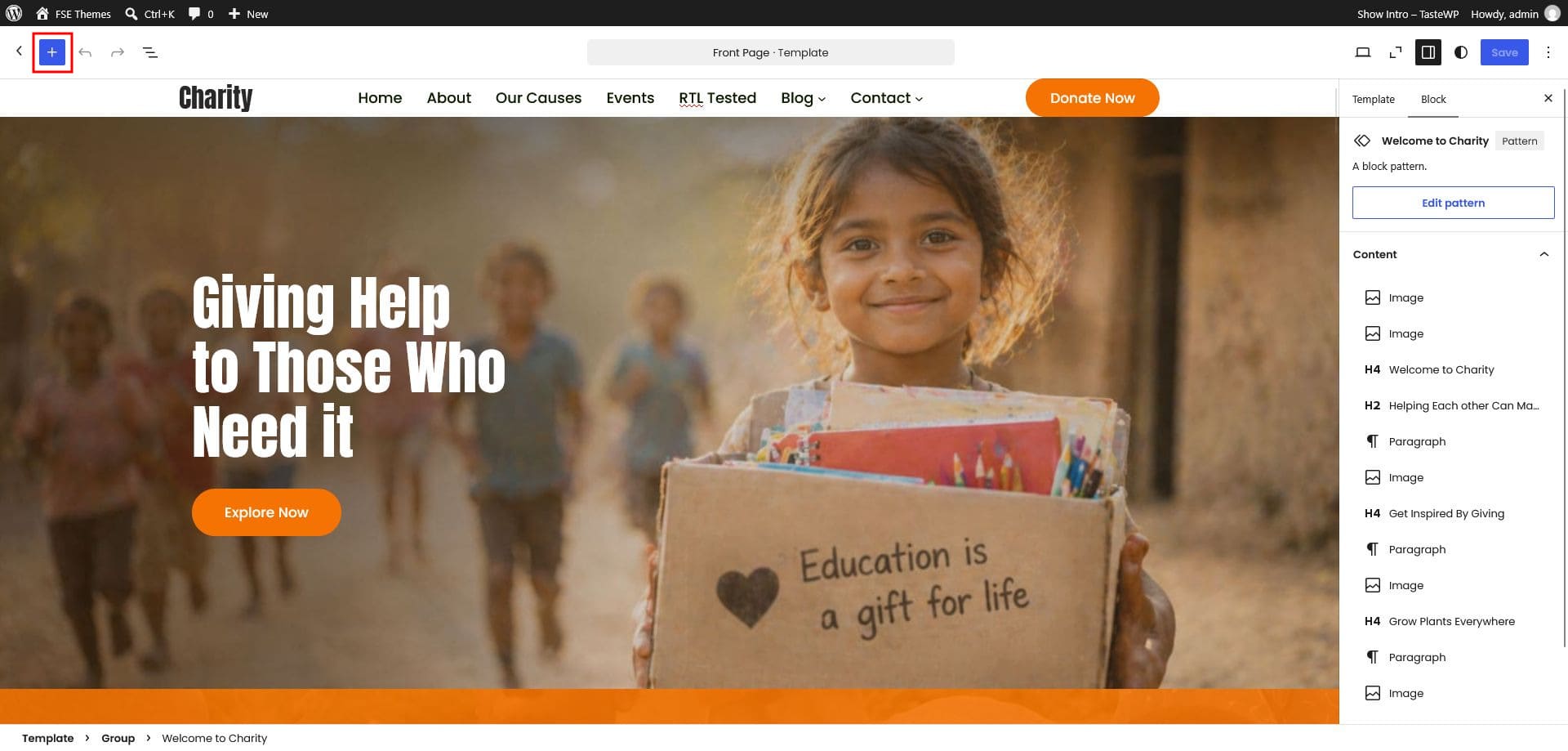
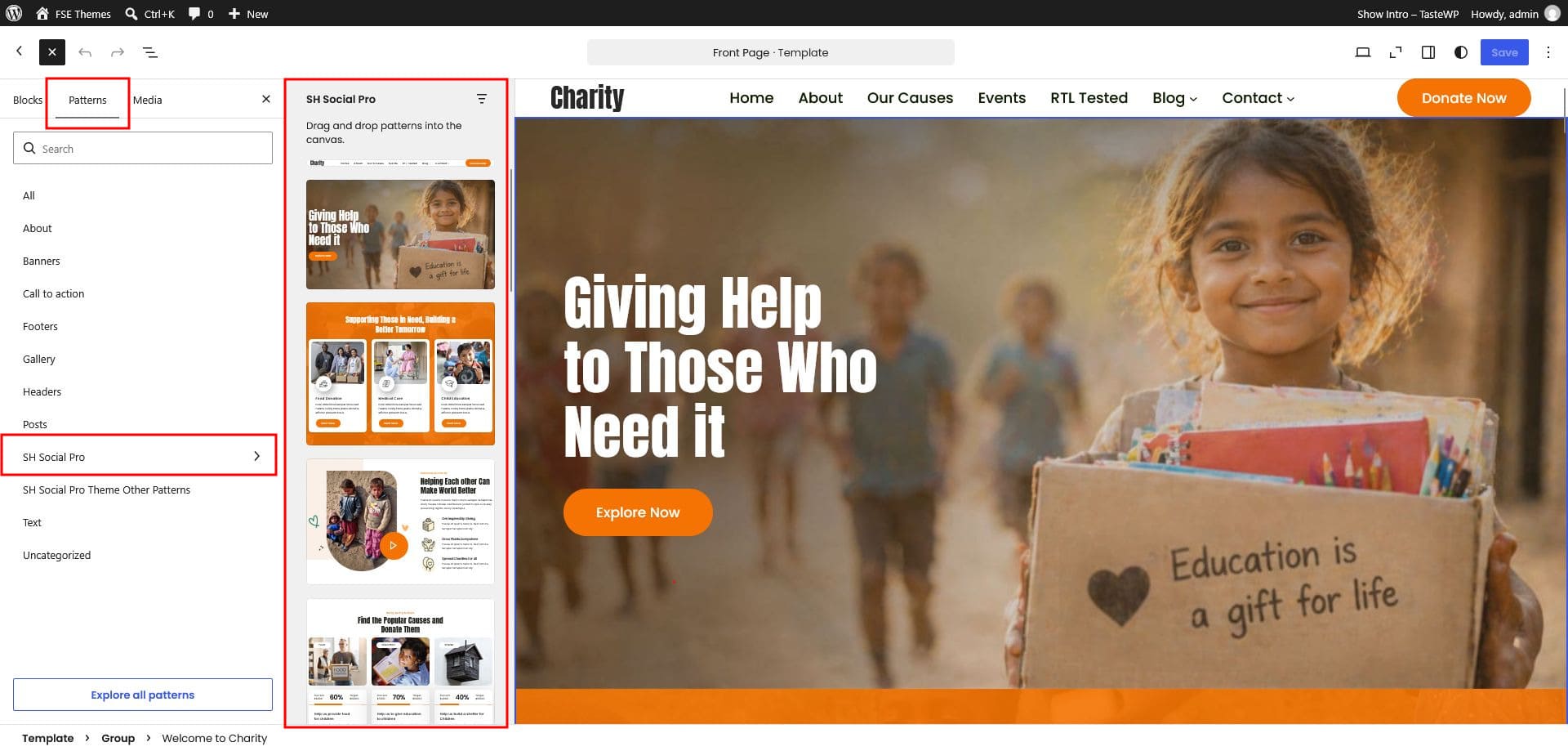
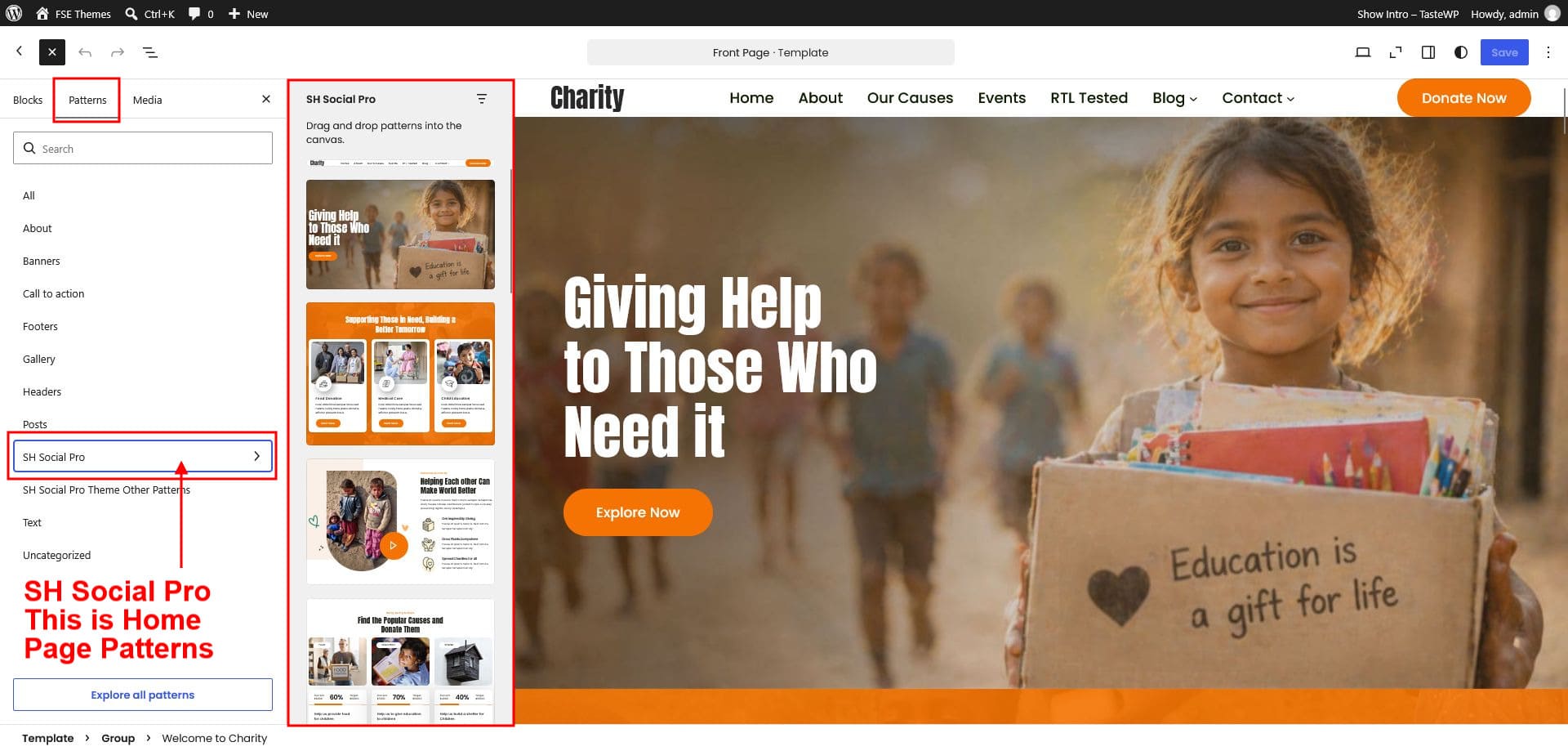
1. Click the Plus (+) icon in the editor.2. In the panel that opens, select SH Social Pro from the left menu.
3. Every theme pattern is listed here — insert any of them into your page.
Header & Footer
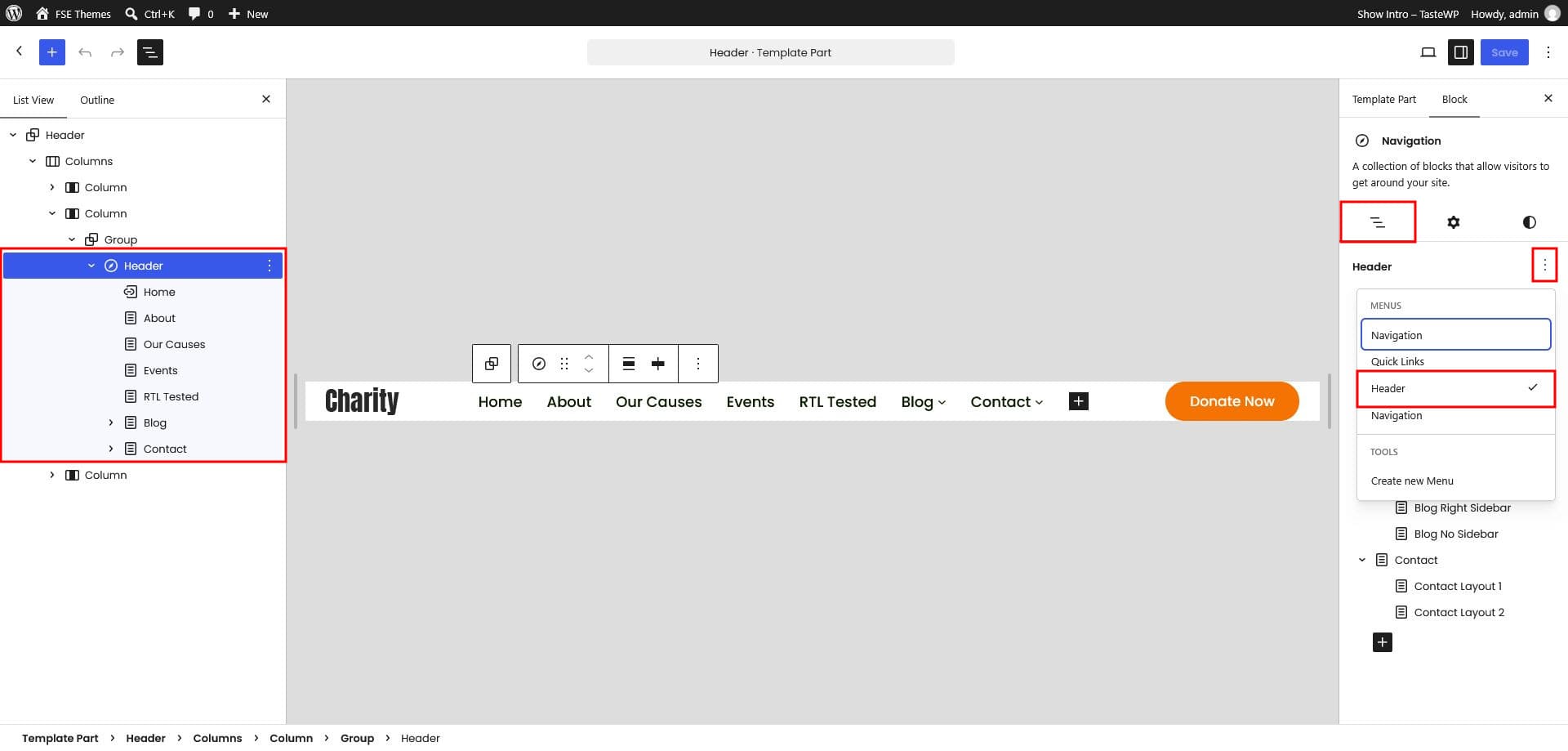
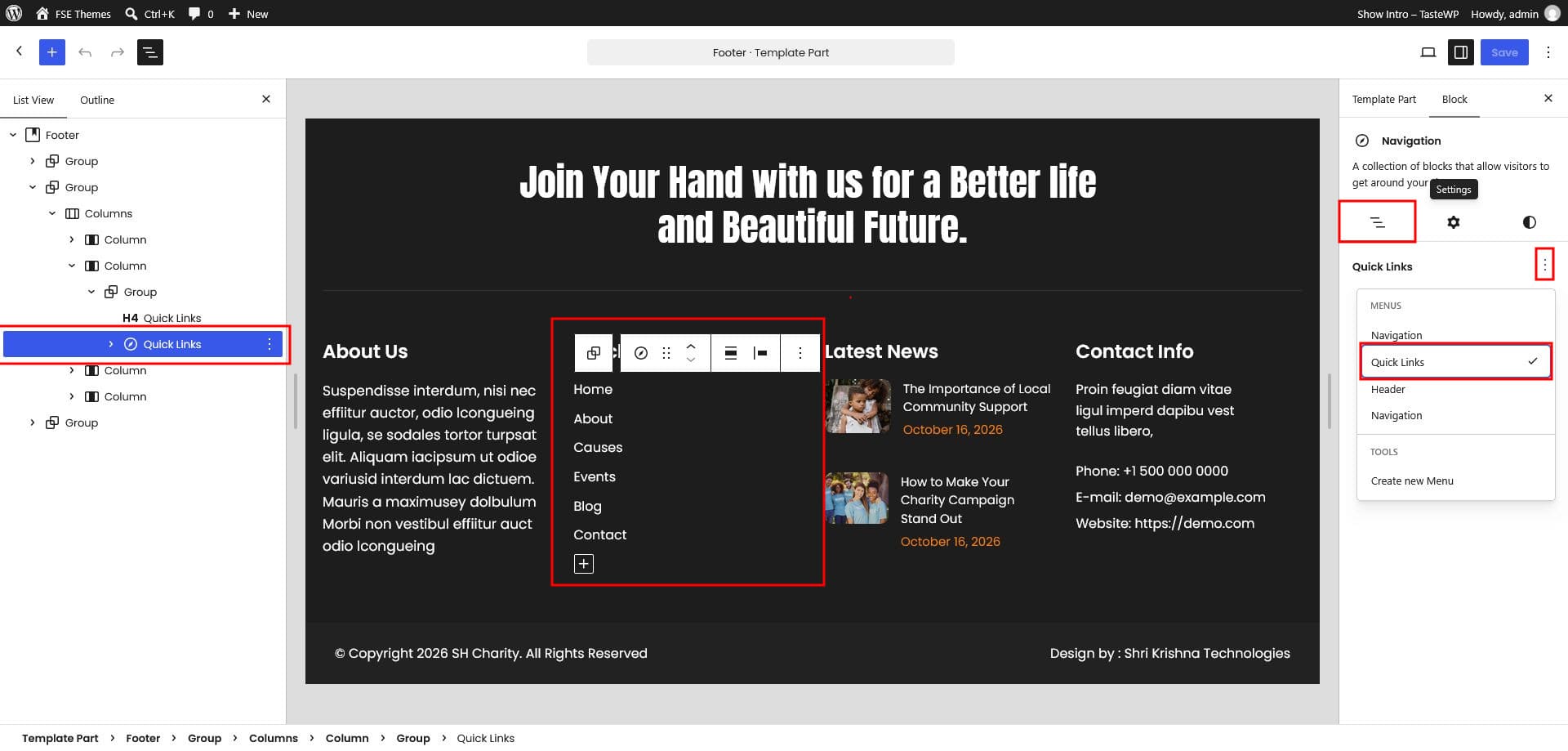
Edit the header and footer
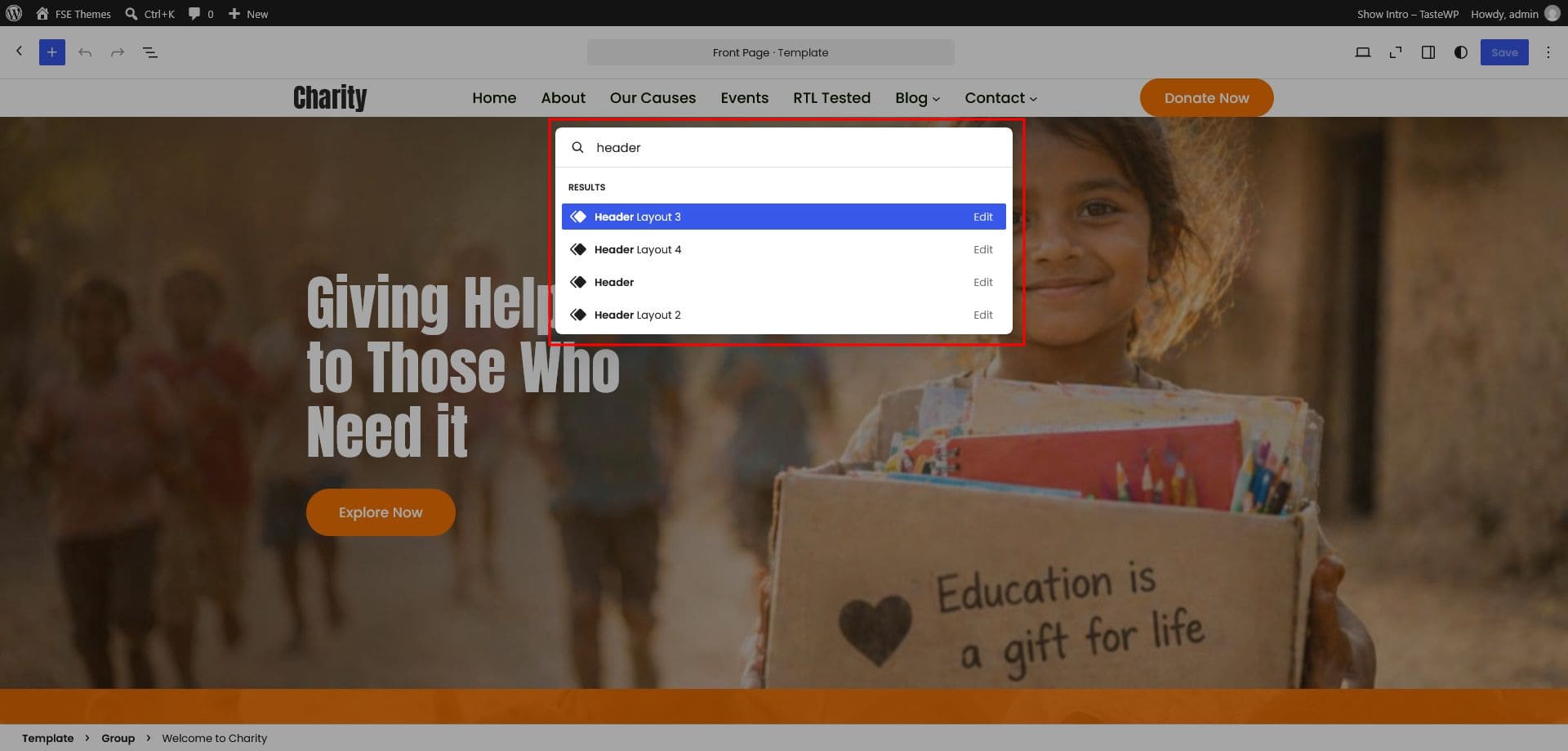
1. Go to Appearance › Editor.2. Click Front Page at the top, then search the theme patterns in the popup.
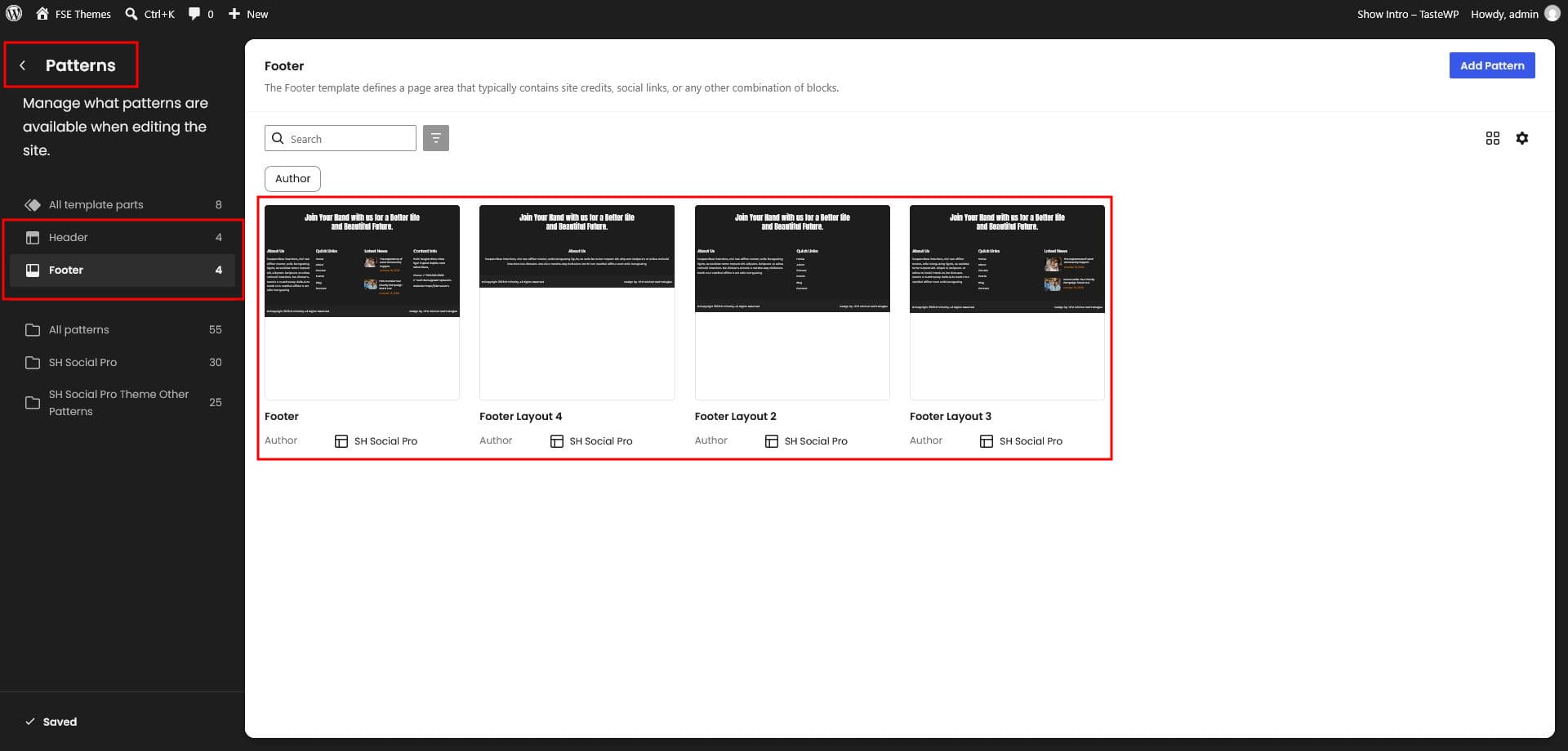
3. Open Patterns › Template Parts and click Header or Footer to edit.
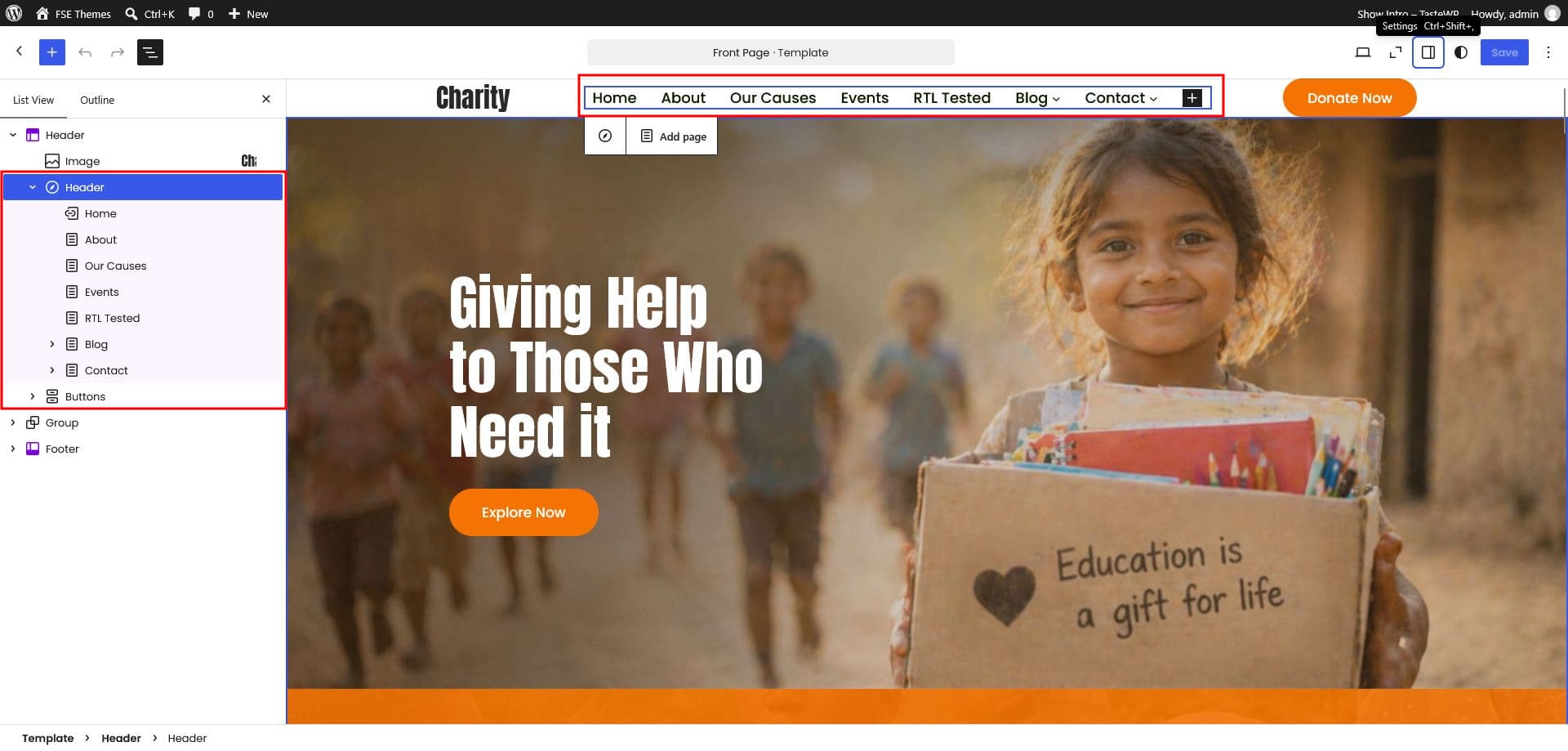
- Open Appearance → Editor → Navigation.
- Click + to add pages, links or custom links.
- Drag items to create multi-level sub menus (supported on desktop and in the mobile overlay).
- Click Save.
Change the header or footer layout
-
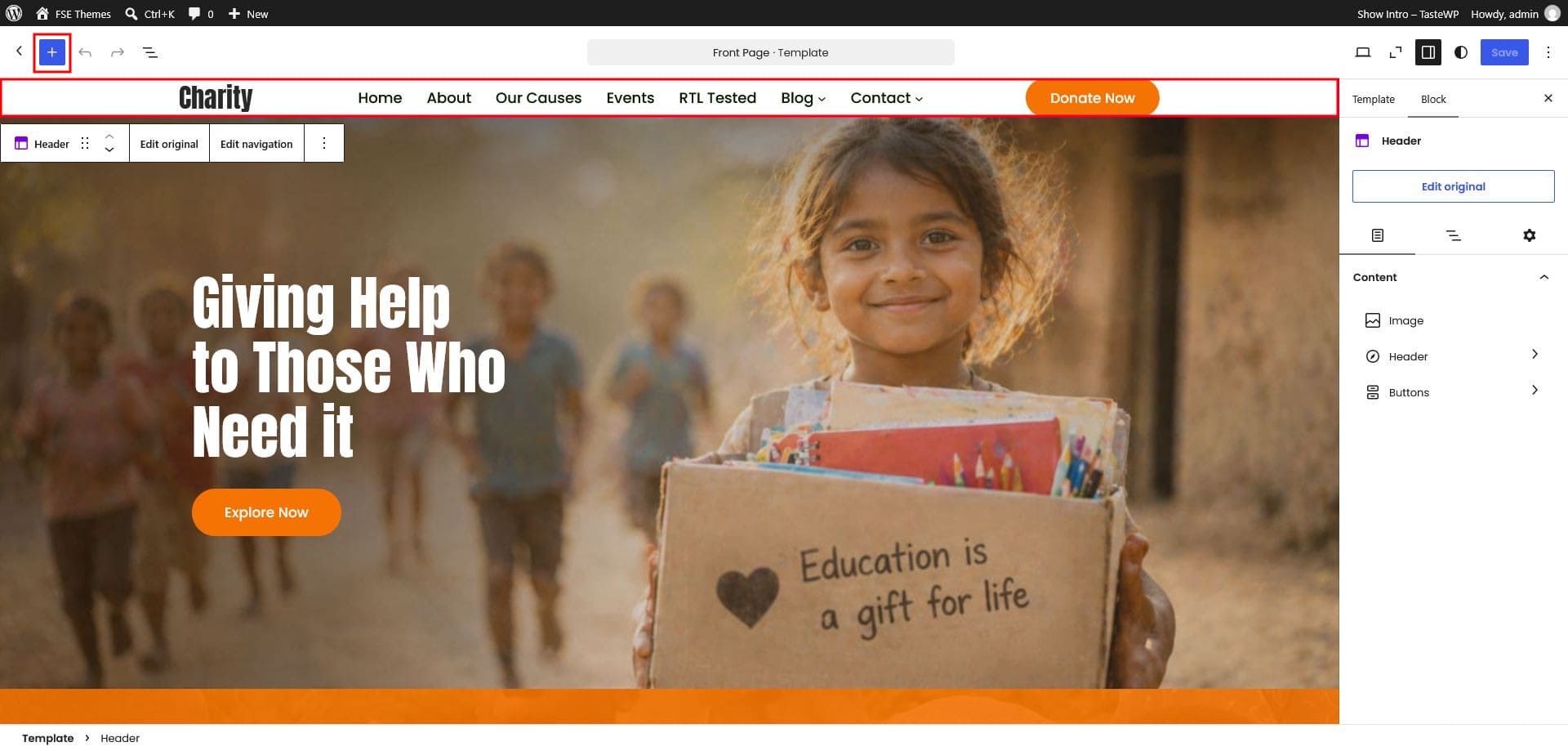
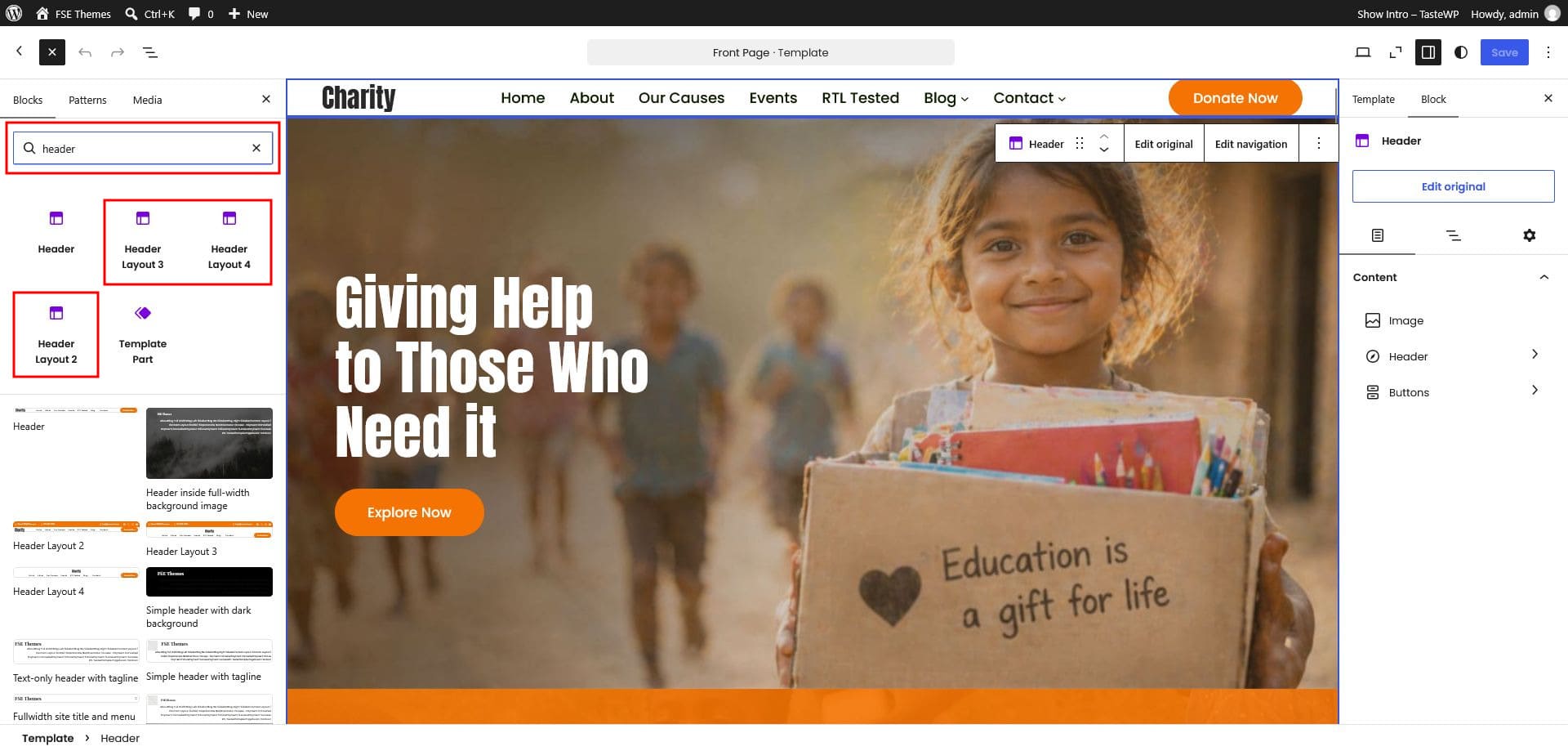
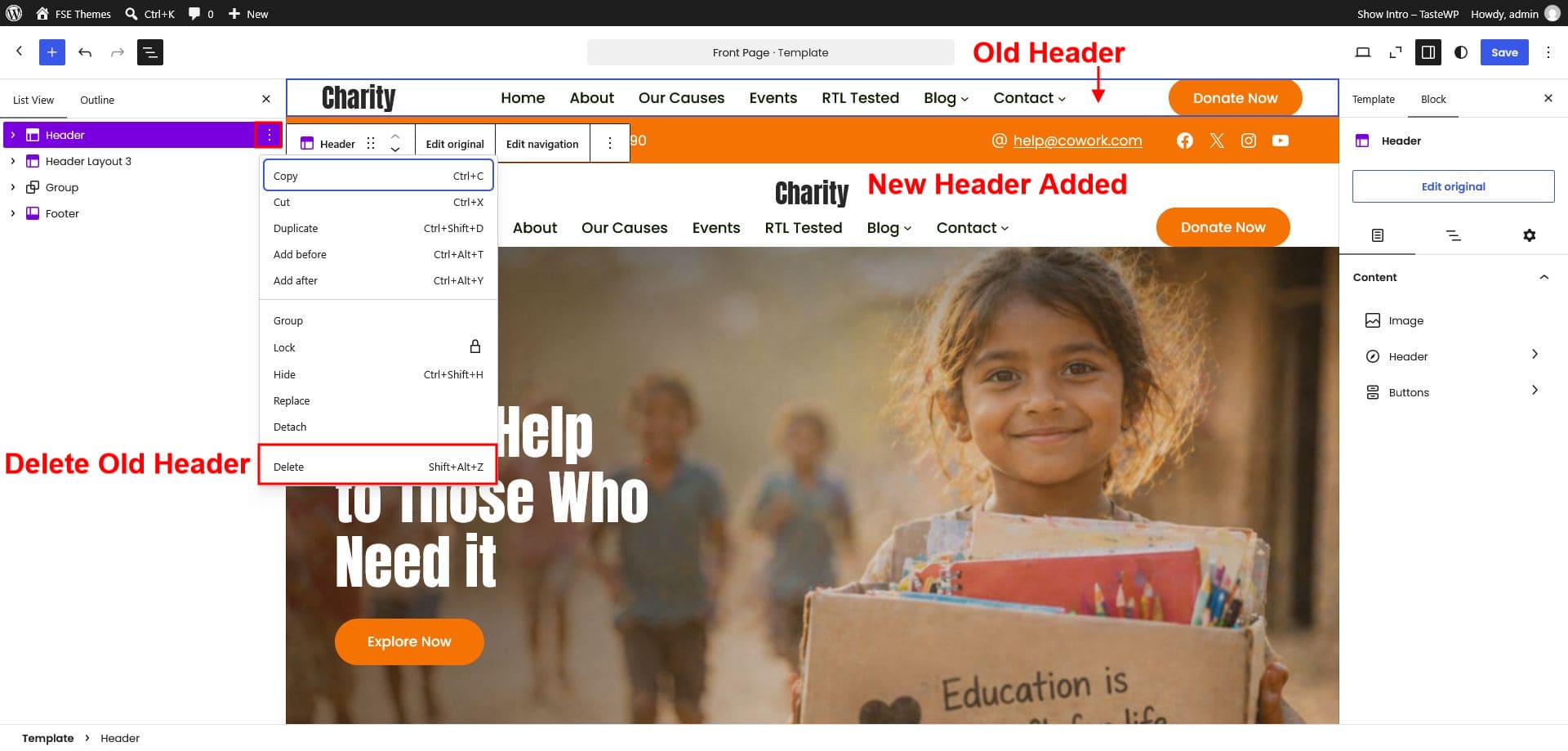
1. Open Appearance › Editor and edit the Header or Footer template part (as above).
2. Click the Plus (+) icon and type header to see all four header layout blocks.
3. Click a layout — for example Header 3 — to add it to the editor.
4. Remove the old header block, then save.
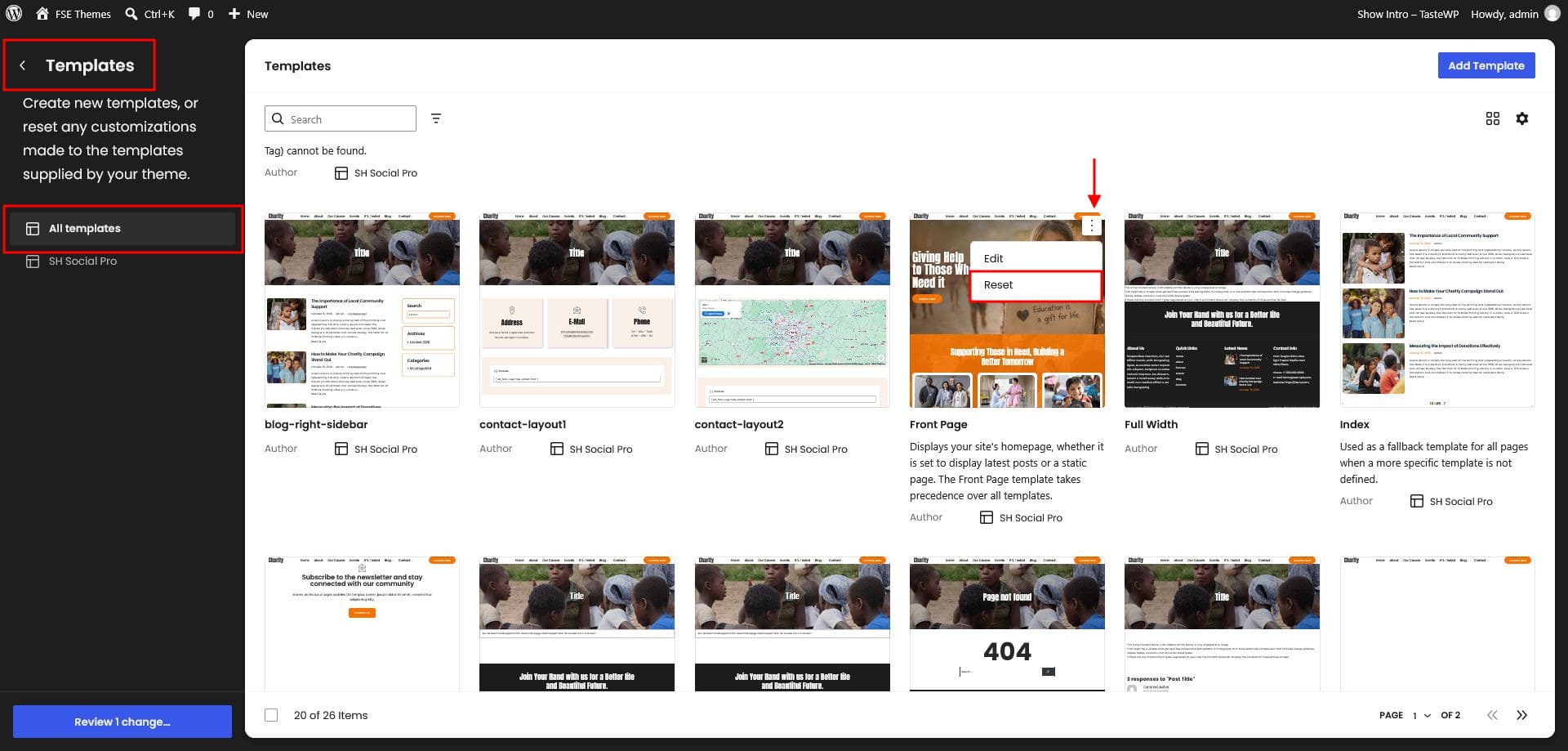
Reset templates
To restore a template to its default, click the three-dot menu and choose Reset.
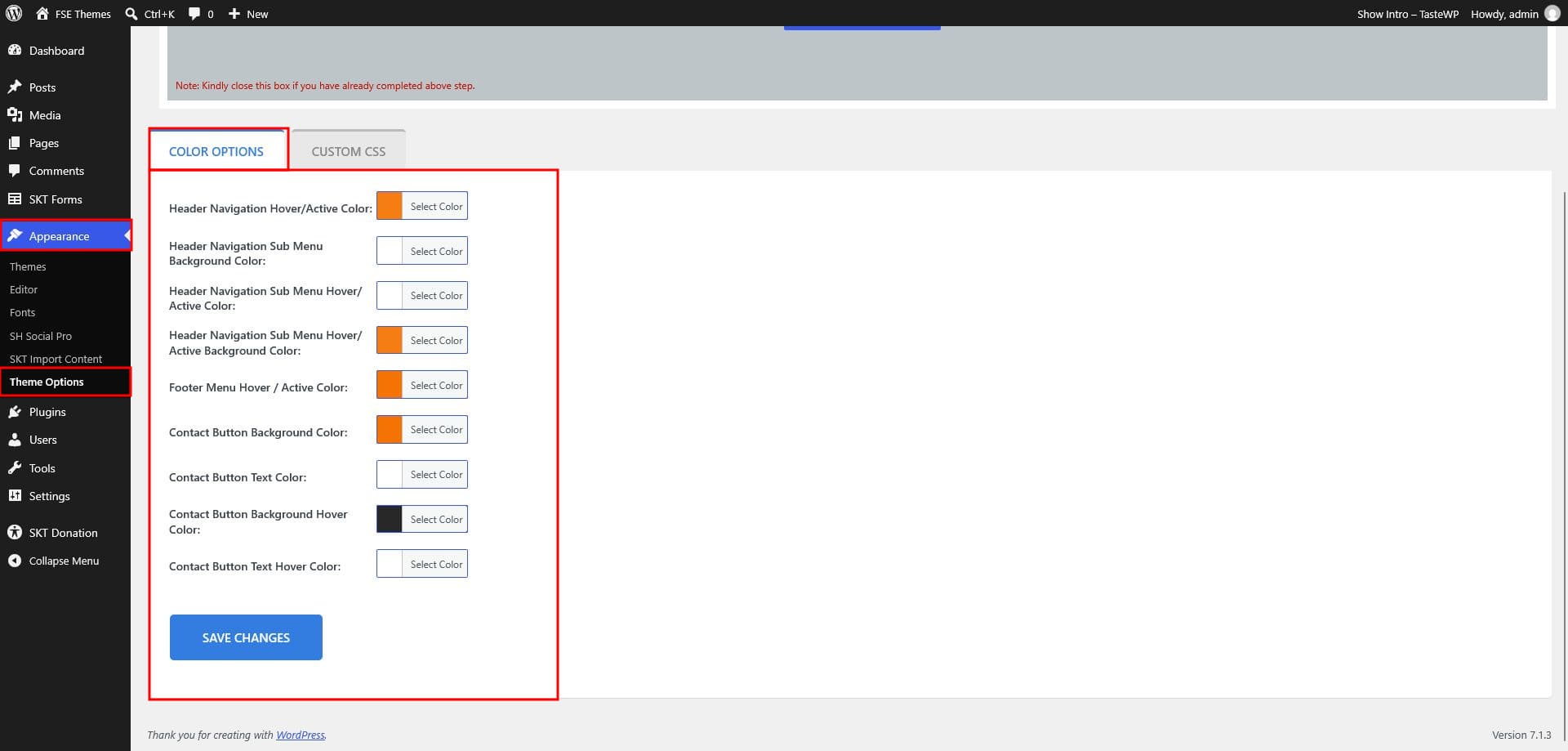
Color options & custom CSS
Some theme colors are customized and managed through Appearance > Theme Options > Color Options.
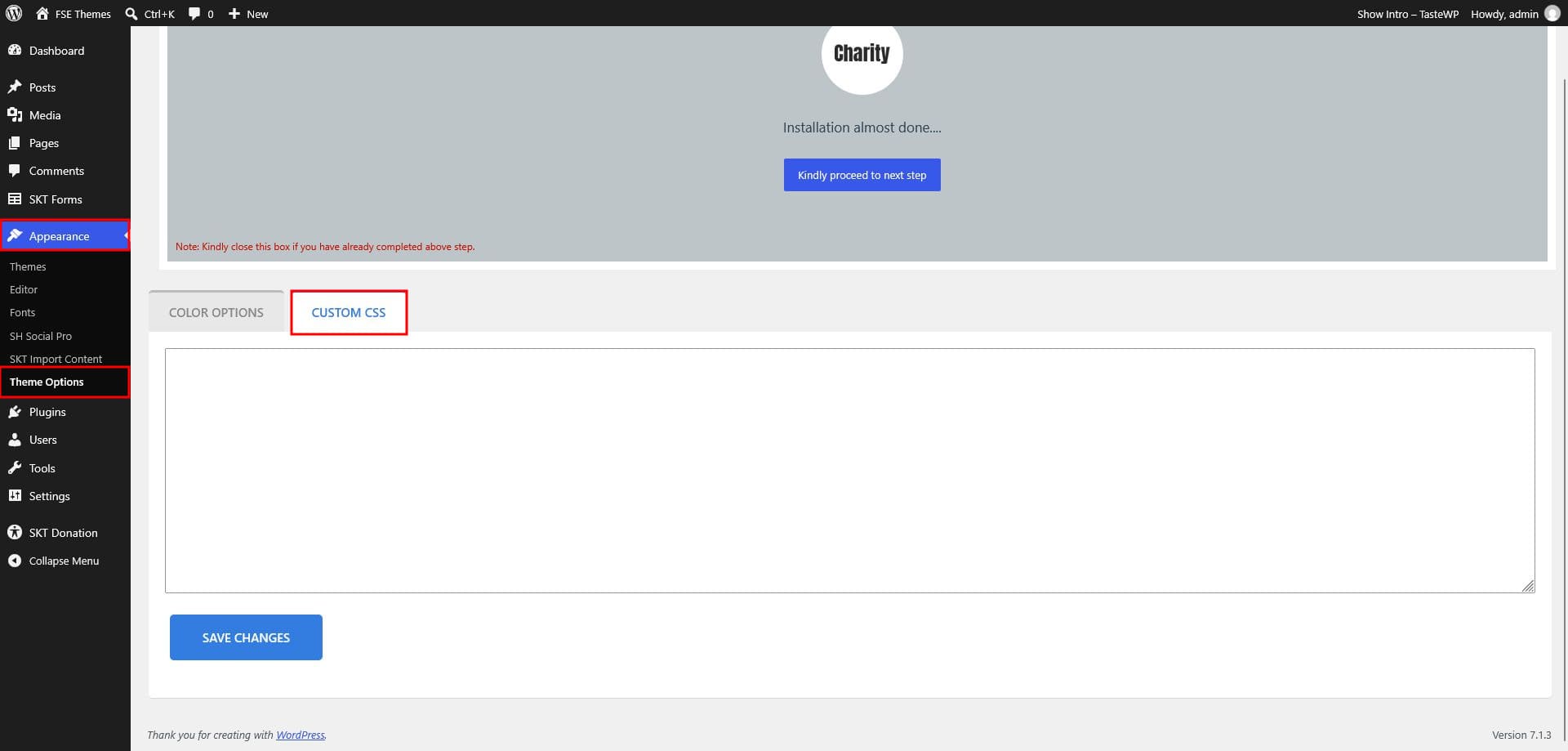
Custom CSS
Add your own CSS in the custom CSS field to fine-tune any part of the design.
Home Patterns And Theme Other Patterns
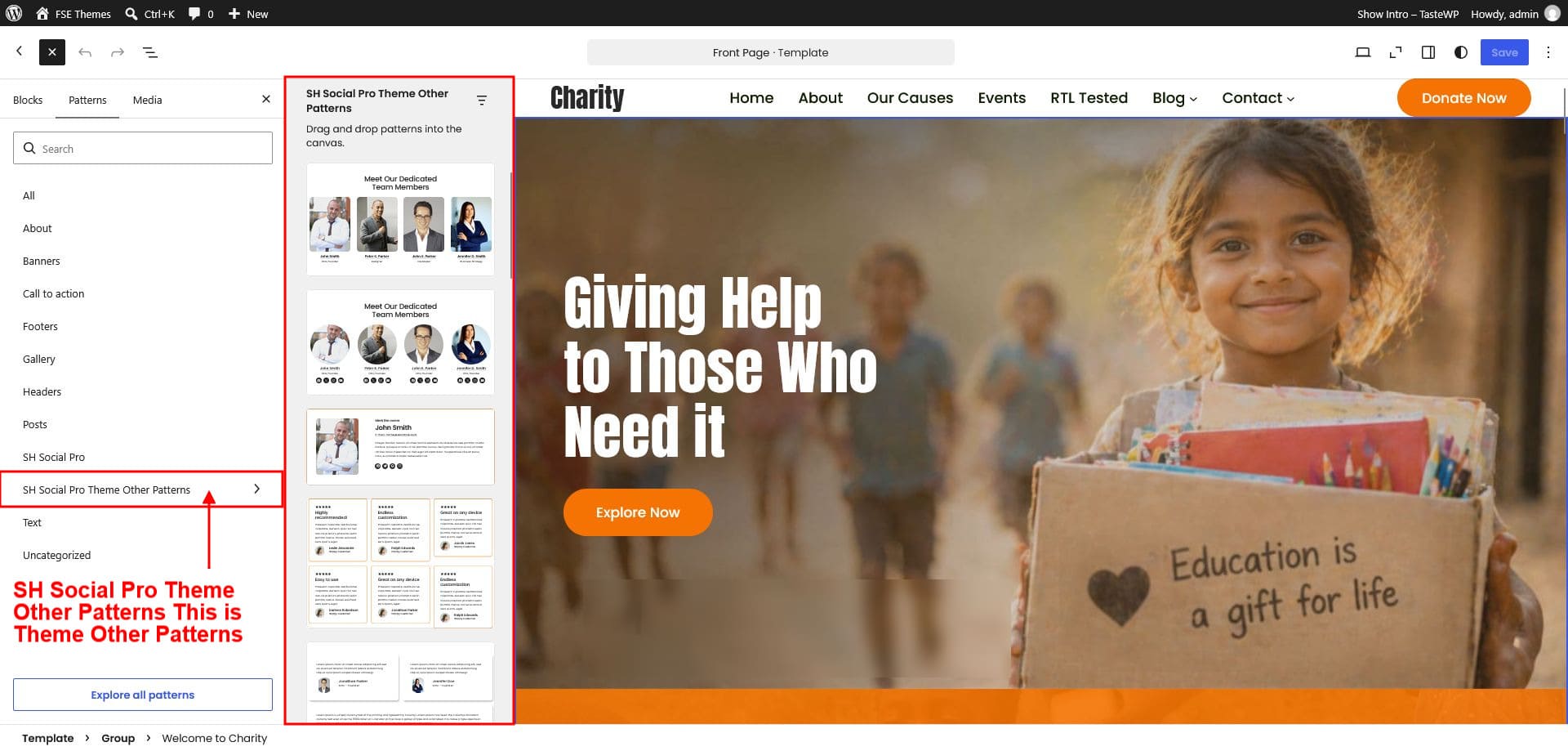
1. Click the Plus (+) icon and open the Patterns tab.2. Select SH Social Pro from the left to see the home patterns.
3. Select SH Social Pro Theme Other Patterns from the left to see the theme other patterns.
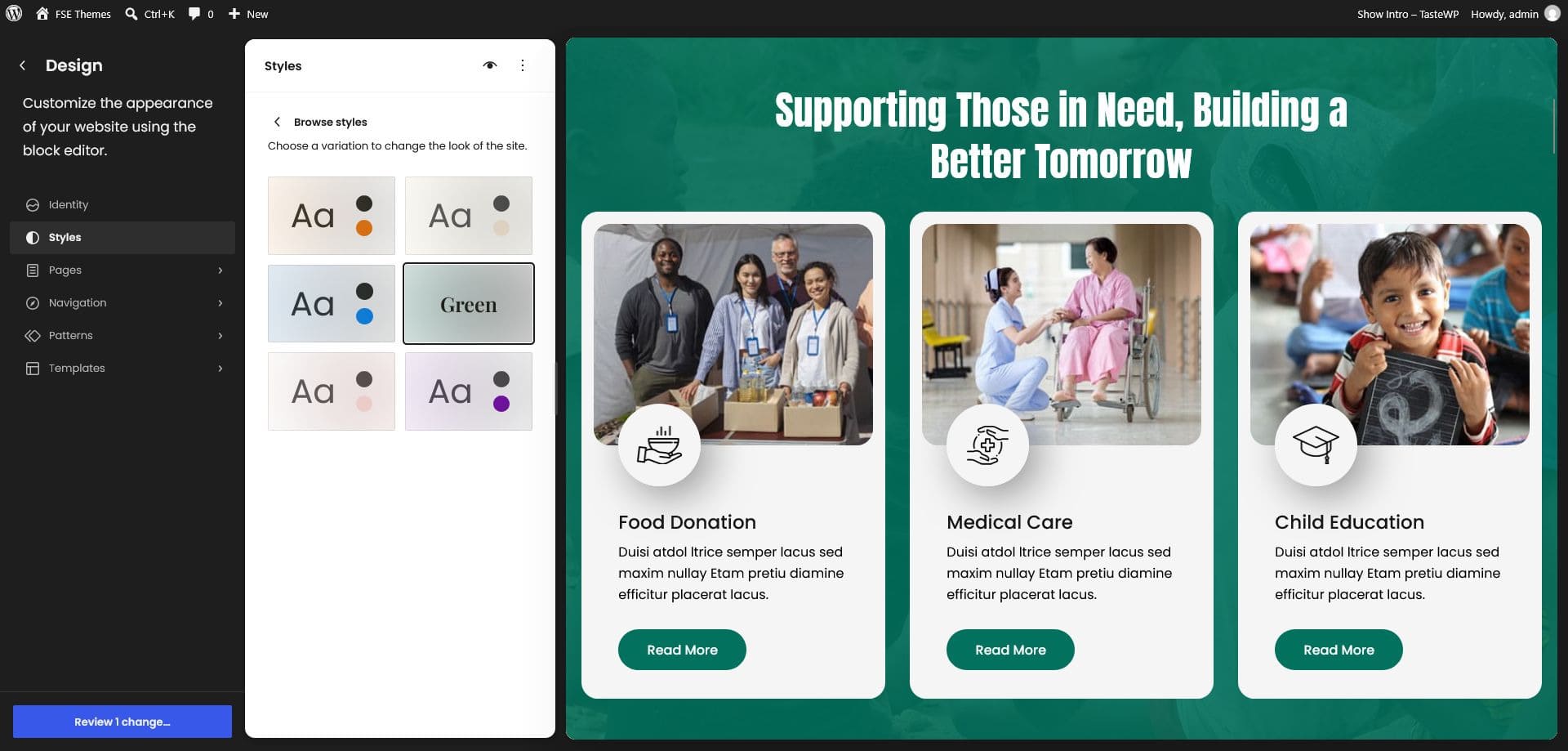
Color variation
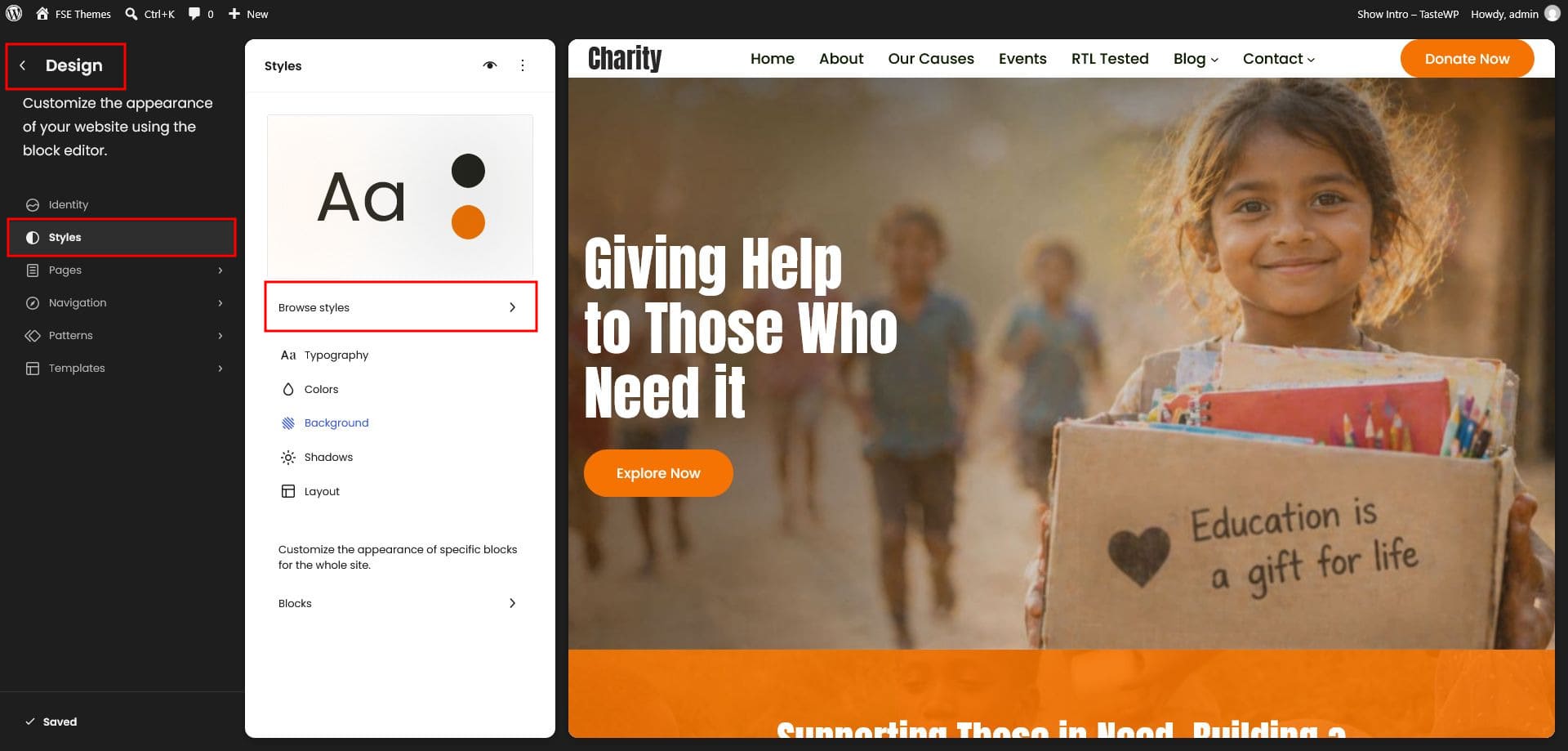
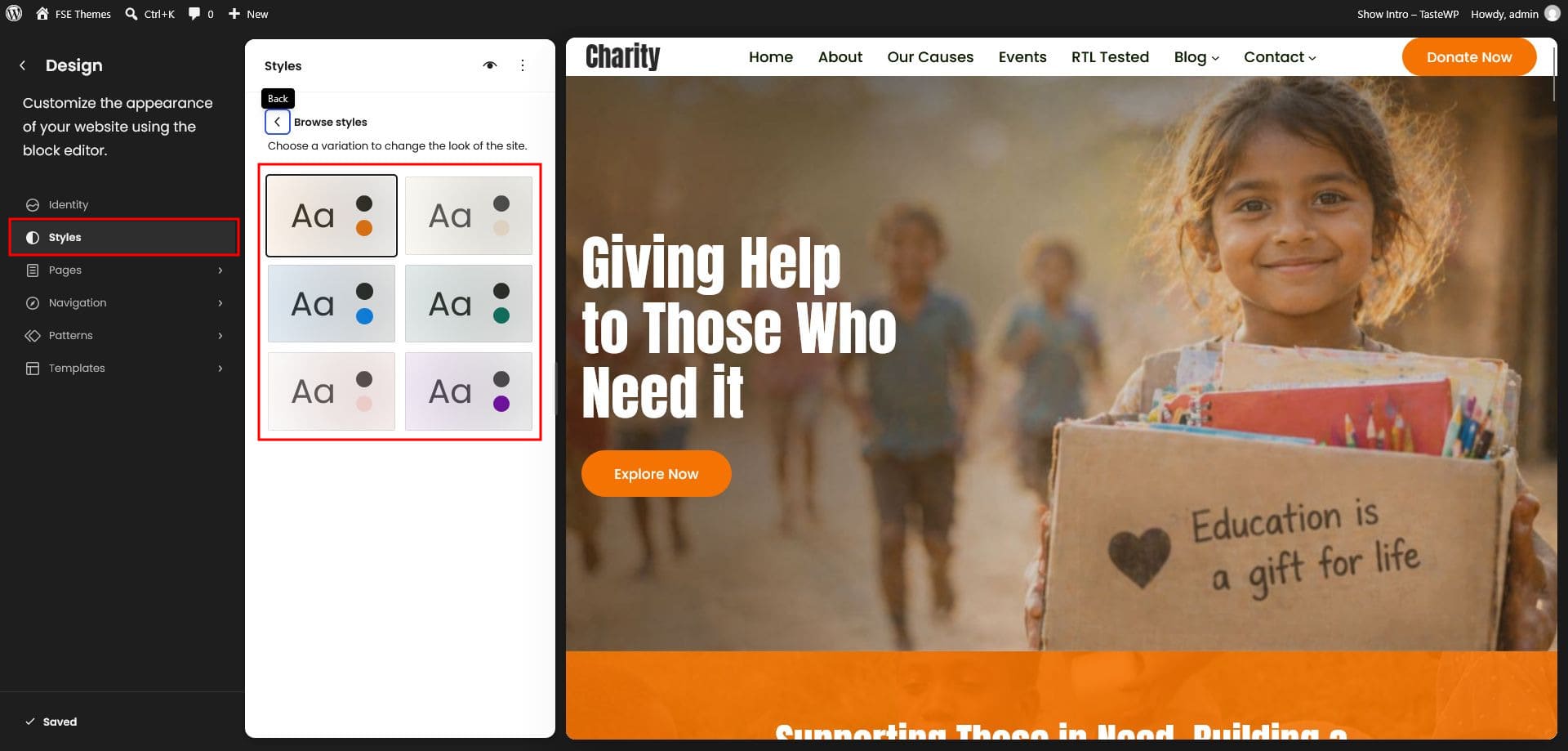
1. Go to Appearance › Editor › Styles.2. Pick a color variation to set a different palette for your theme.
Remove or Change the Animation Style
1. Go to Appearance › Editor and select the section or column where you want to remove the animation. In the right-side editing panel, find the Additional CSS Class(es) field. You will see a class added for the animation, such asrvl rv-zoomIn. If you want to remove the animation from that particular section or column, simply remove these CSS classes from the field. The animation will then be disabled for that specific section or column..
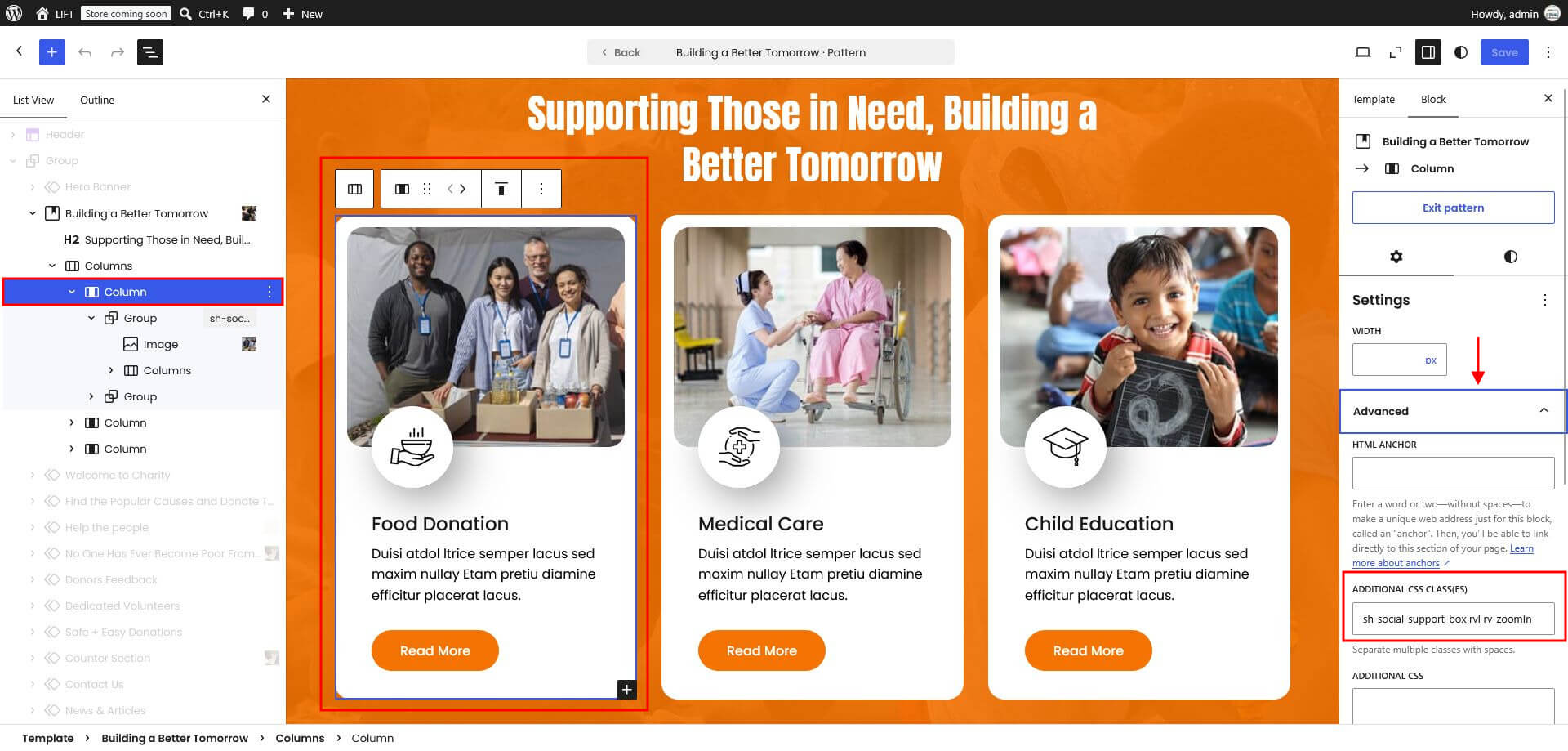
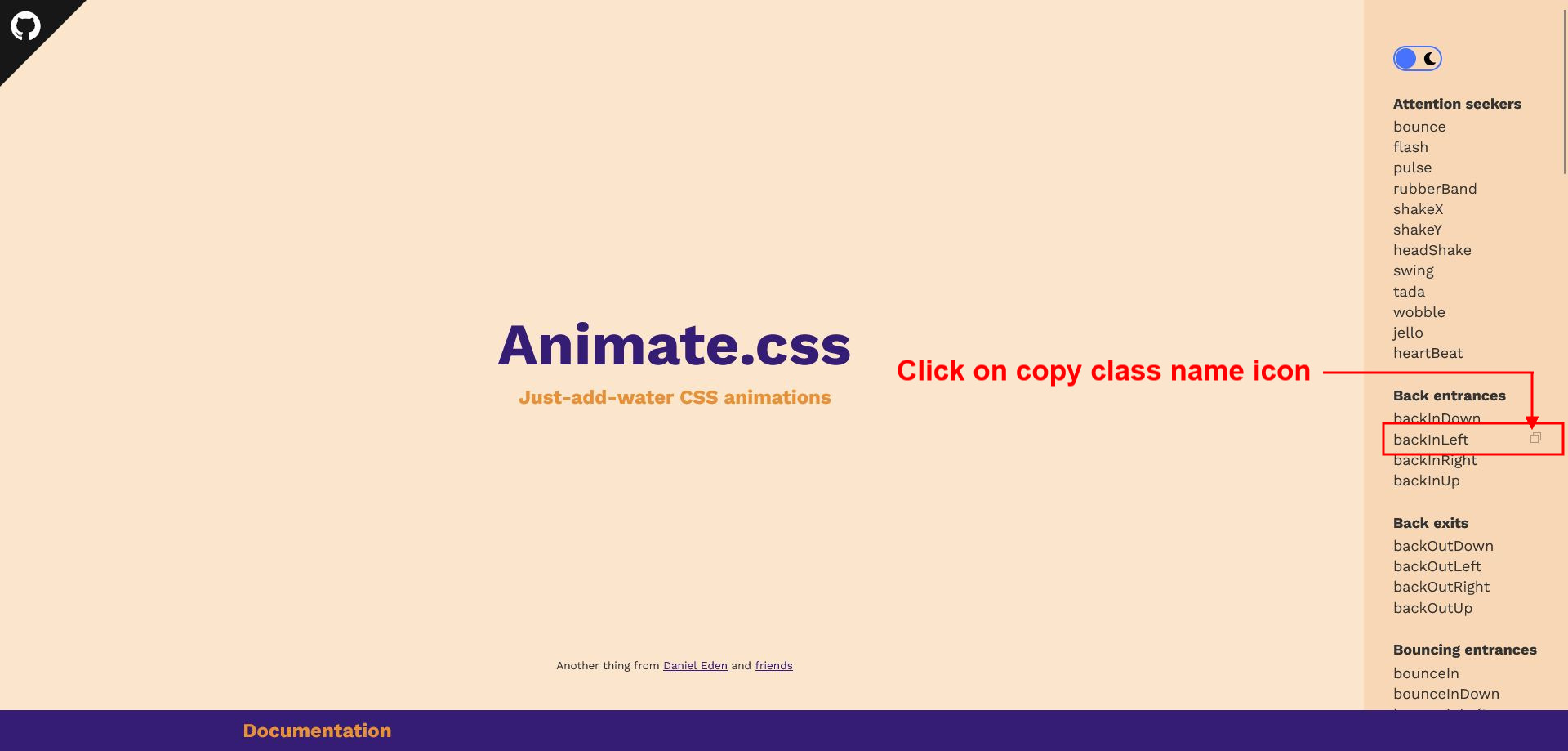
Format: rvl rv-zoomInReplace zoomIn with your desired animation name, but do not change the
rvl rv- prefix. This prefix is required by the theme's animation system.
Templates
Included templates: Front Page, Index, Single Post, Page, Archive, Search, 404, Full Width, Blank, and WooCommerce templates (Shop, Single Product, Product Category, Product Tag, Product Search, Cart, Checkout).
Assign Full Width or Blank to a page from Page → Template in the page sidebar.
WooCommerce
- Install and activate WooCommerce and run the setup wizard.
- Add products from Products → Add New.
- Product gallery zoom, lightbox and slider are enabled by default.
- Edit shop, cart and checkout layouts from Appearance → Editor → Templates.
Translation & RTL
The theme is translation ready (languages/sh-social-pro.pot) and includes RTL styles.